
Folders
Create folder and sub-folder and organize your QR codes in folders for better management.
Create folders for QR codes is available for free to all ZodQR users.
Sub-folder is available for paid users.
Sign up and and manage QRs with folders - it's free
ZodQR QR codes and folders management act like a computer file system. The root folder is My QR Codes. When moving a QR code from My QR Codes to a folder, it will no longer appear in My QR Codes - you can find it in the folder instead. Create folders and manage QR codes in folders is available for free for all ZodQR users.
Create a folder to organize QR codes
- From
Dashboard/My QR Codes, click New Folder button, or pressFkey.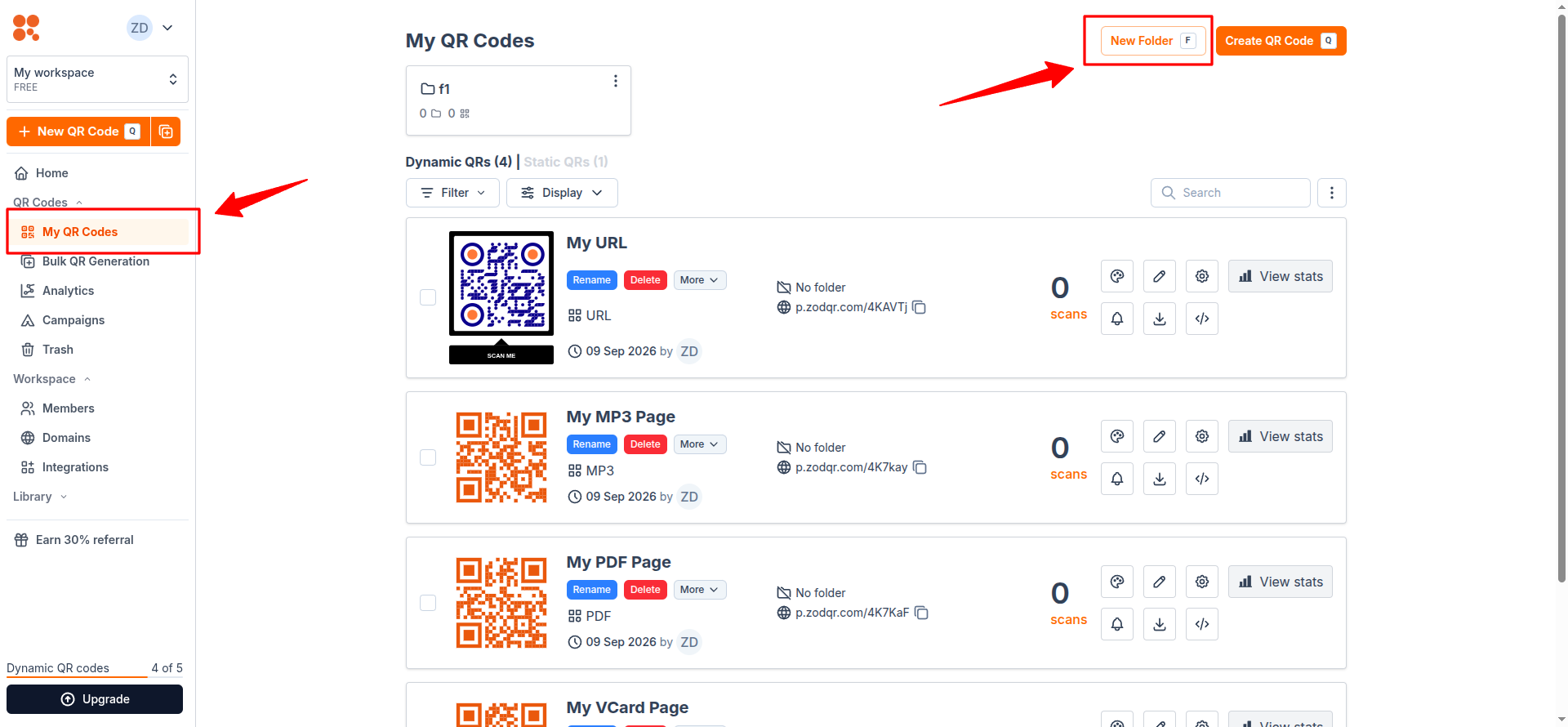
- Enter a name for folder, then click Save
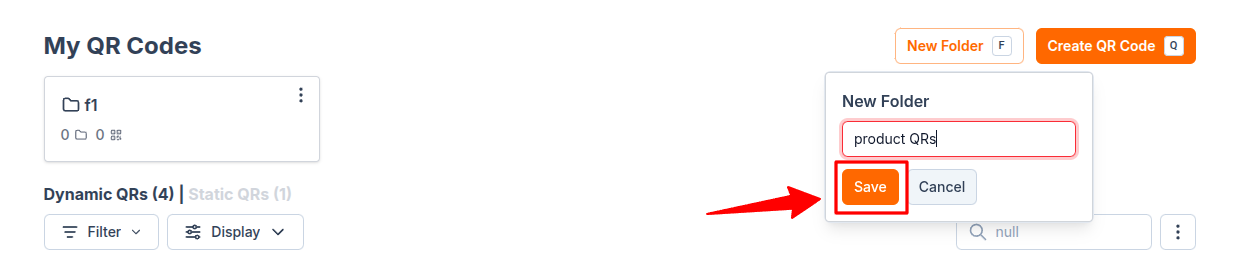 New folder will be created, with 0 sub-folder and 0 QR code.

Move QR code to folder
- From
Dashboard/My QR Codes, click More button on the QR card you want to move to folder. Then select Move to Folder option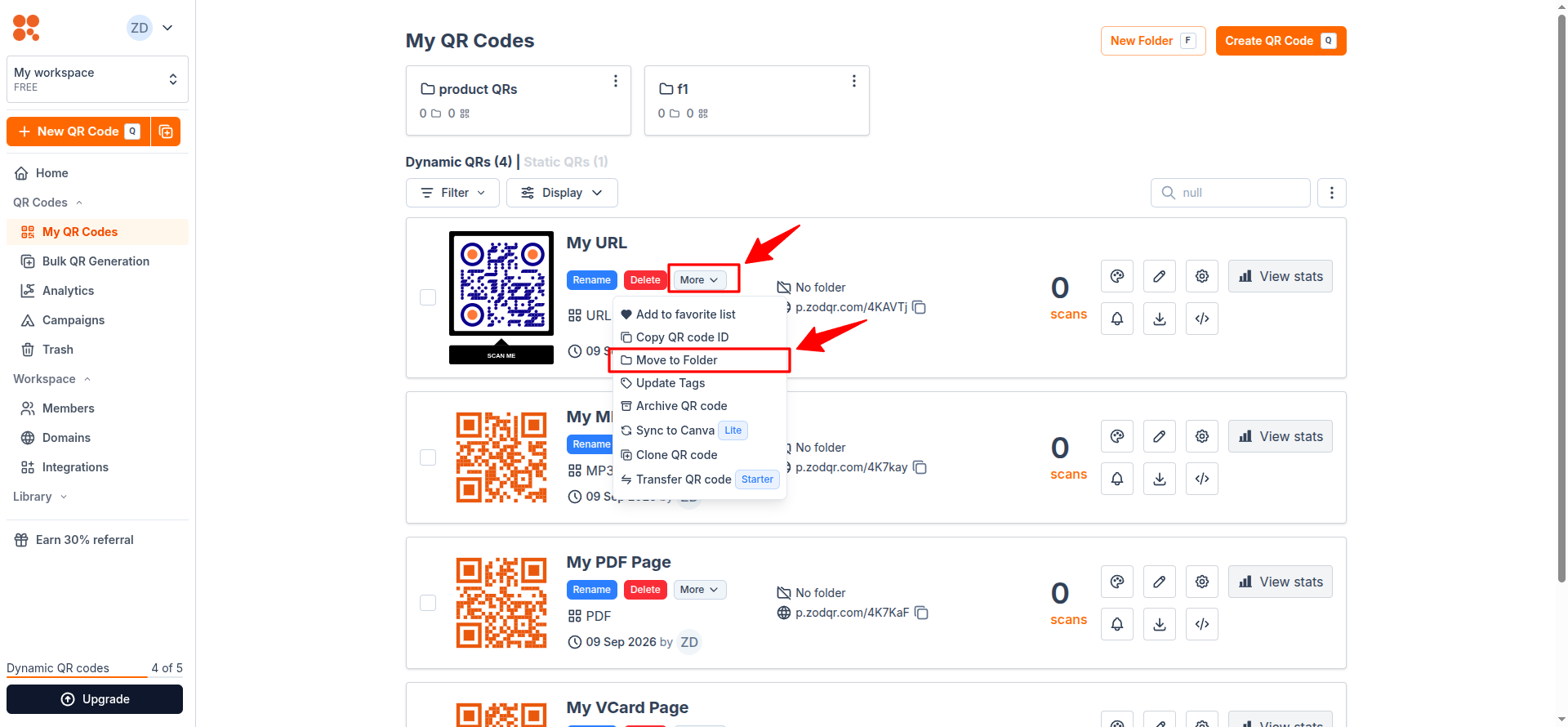
- Select a folder from the list, then click Save
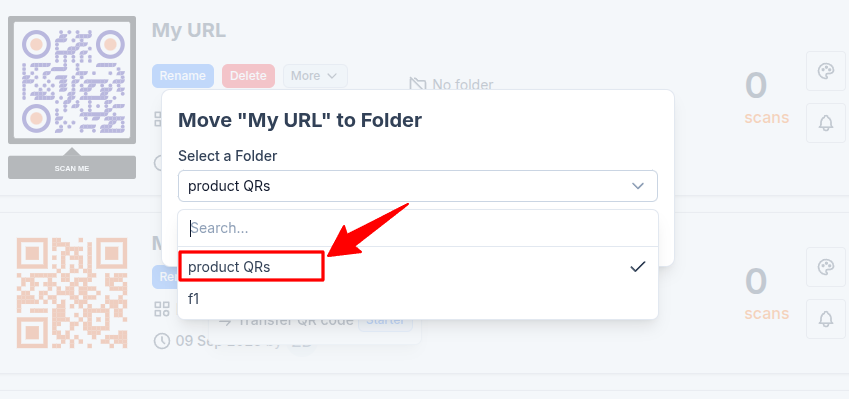
- The QR code is moved from
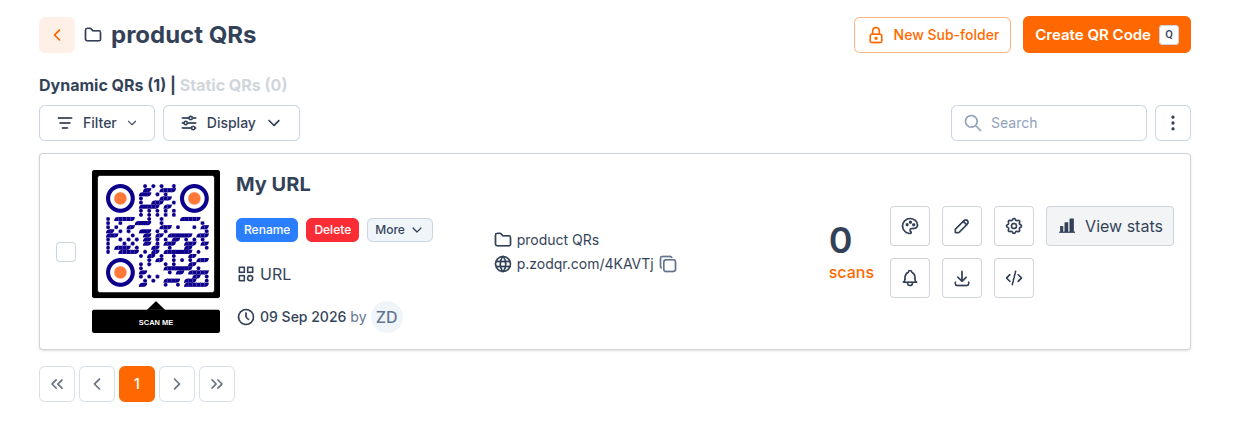
My QR Codesto the folder, and QR code count is now increased.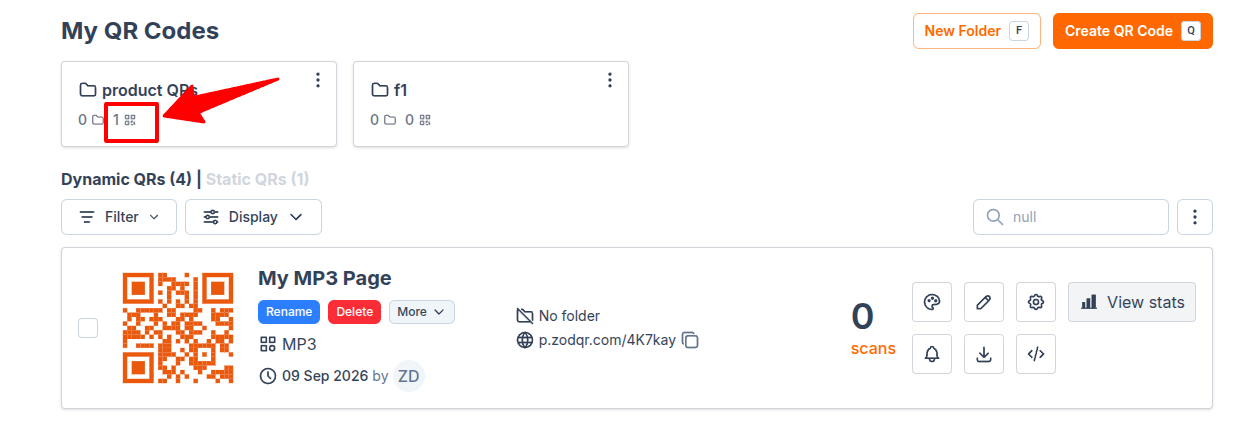 To see that QR, click the folder card.
Create a sub-folder (folder nested in folder)
For even better management if you have hundreds of QR code, ZodQR has option to create sub-folders (folder nested in folder). This feature is for paid users only.
- Select folder you want to create a nested folder inside

- Click New Sub-folder button, or press
Fkey. - Enter sub-folder name, then click Save
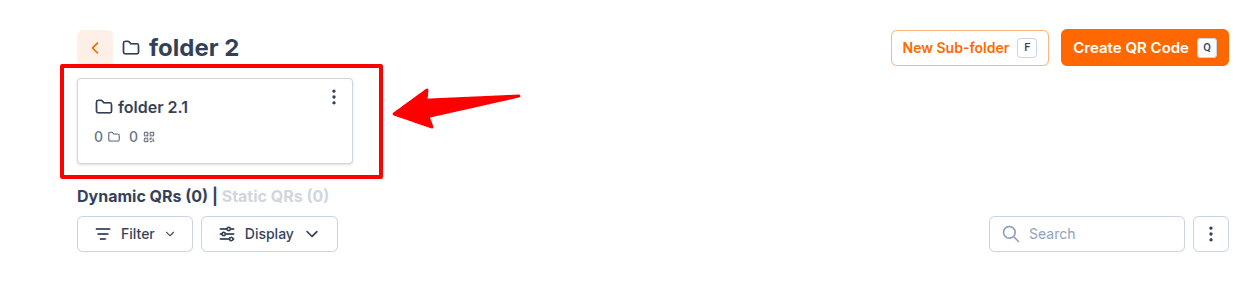
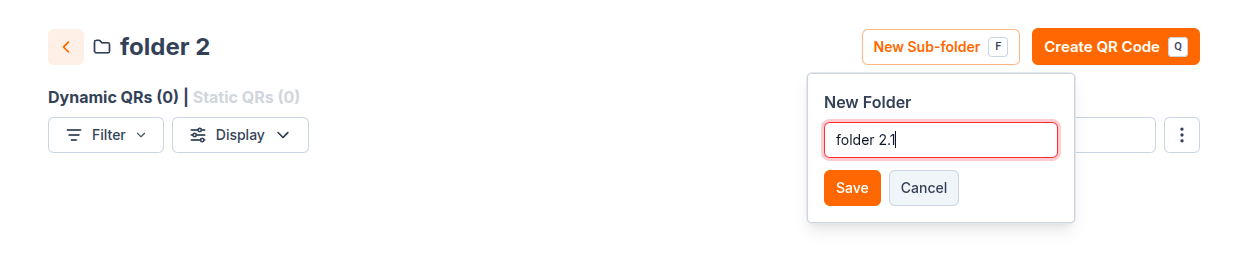 New sub-folder will appear on top of folder page.
 Now you can create a QR code within that folder, or move QR code to sub-folder as previous section.