
Create a Free Digital Business Card
In this guide, we'll go through step by steps guide to create a dynamic vCard QR code to share contact information online. Editing contact anytime, and saving contact is within a single click.
 Huong PhamUpdated: 2026-10-22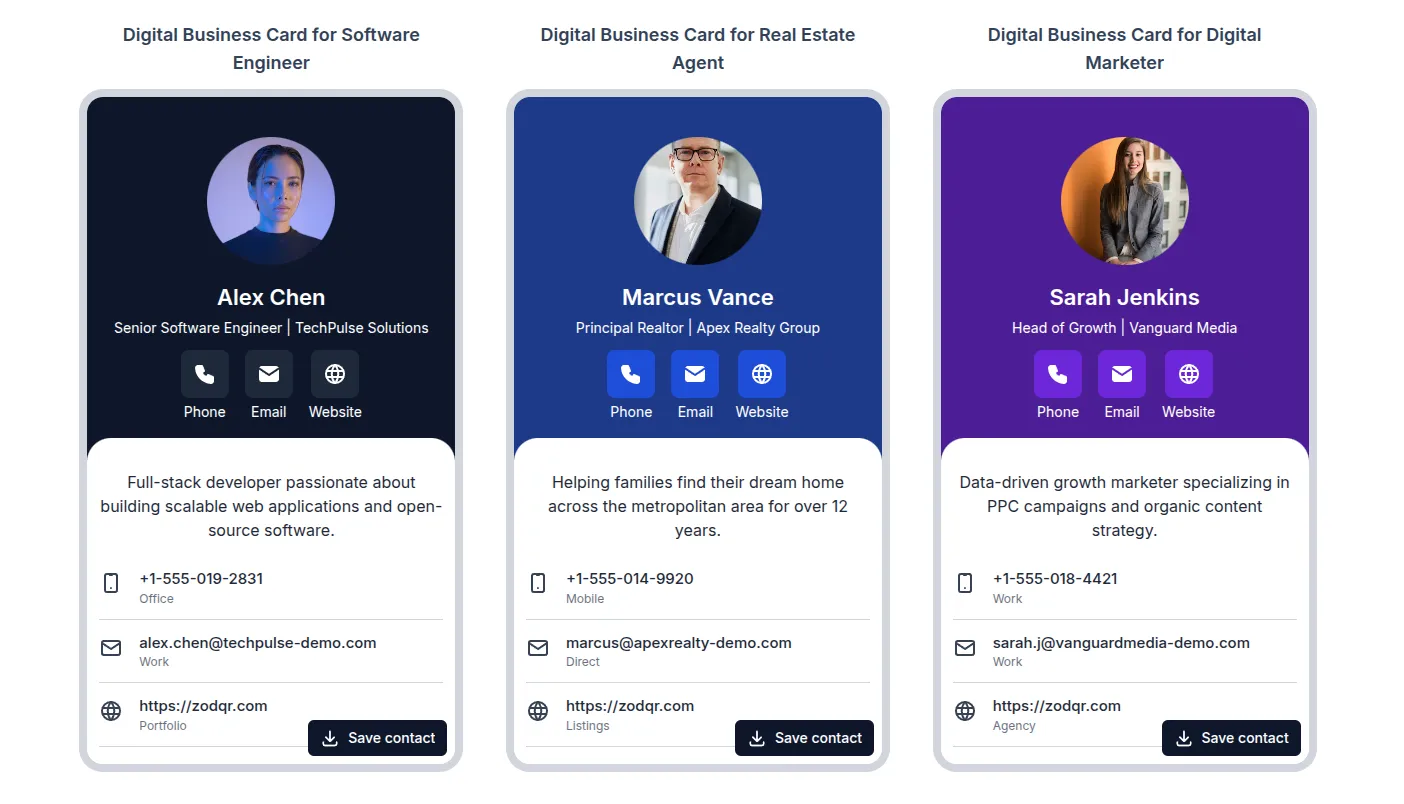
Step-by-step guide to create free digital business card
We will use ZodQR's free Digital Business Card Maker to share your contact online with a QR code and link, in a few easy steps:
1. Add contact info
Enter the contact info you want to share with digital business card:
- Add a contact photo
- Enter contact name, personal description, company name and job title
- To add contact phone, click Add phone button. You can add multiple phone numbers, by clicking Add phone again.
- Similar, you can add multiple emails, websites and addresses.
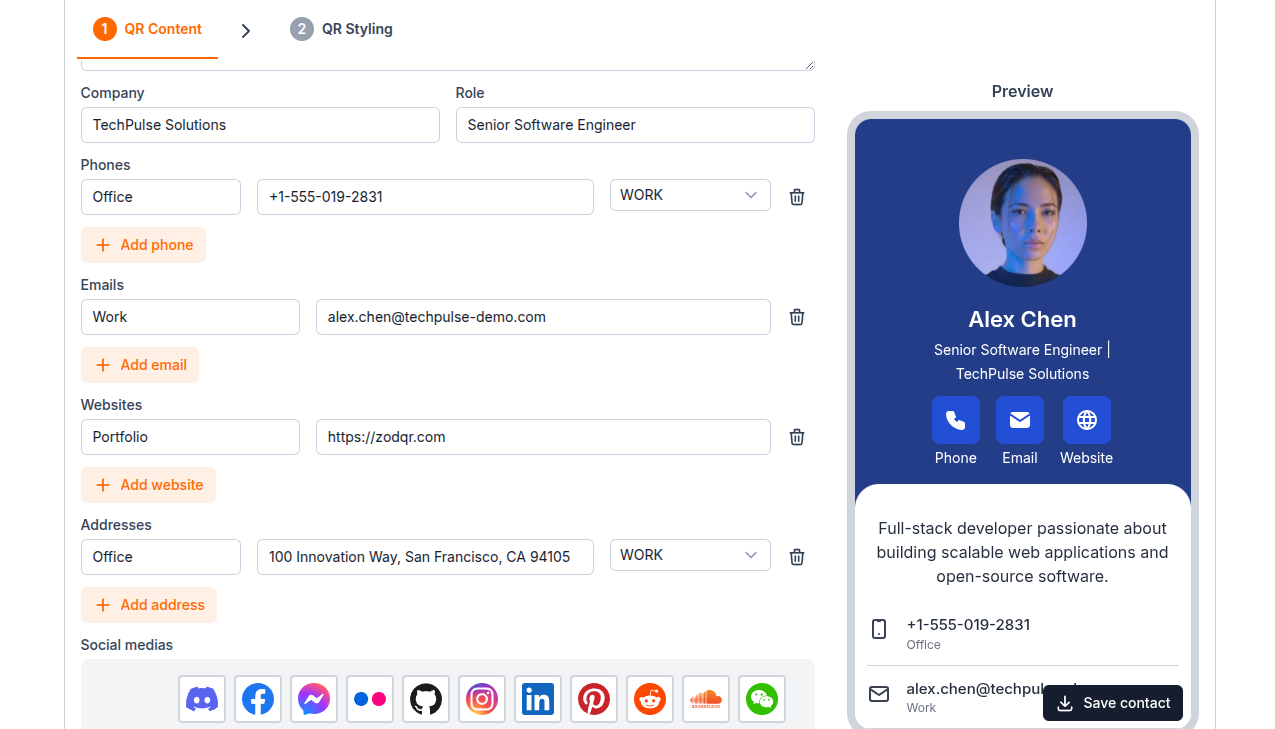
- To add social media links into your vCard, click in the social media icon, then enter social link.
2. Customize vCard page styling
To customize page's color and layout, click Page styling tab.
3. Customize the QR code
After completing the QR content, click Style QR code to customize the QR image. All customization options are available for free to all ZodQR users:
- Change QR patterns (body and eyes)
- Set pattern and background color
- Add logo to center of QR
- Add a frame with text, e.g., "SAVE CONTACT"
When you are done styling your QR code, click Save QR code. You will be asked to sign up for a free account to save and share your QR code. Once signed up, your QR code will be auto-saved—it will never expire and includes unlimited scans.
Update contact info without changing QR code
You can change contact info in a digital business card and keep existing QR code/link continue working, without reprinting QR code or changing the link. Updating contact info is free with ZodQR - freely update your contact info to keep them up to date.
- From Dashboard, click Edit QR code data button on the business card you want to update
- Enter new contact info you want to change
- Click Save changes, new contact info will take effect immediately.
You can also update QR code styling for free. Just clicking Edit QR code style and change its look. After finished, click Save changes.
Download and share new QR code.