
Slack Integration
Send scan notifications and scans analytic reports hourly, weekly or monthly to Slack channel.
 Huong PhamUpdated 2026-09-12
ZodQR integrates with Slack, allowing you to send notifications when your QR code get scans, and send hourly, weekly or monthly report about your QR code campaign performance to Slack channel.
What report can you have in Slack
ZodQR Slack integration allows you to send multiple report type to Slack:
- Immediate report
When enabled for a QR code, ZodQR will send a notification to Slack whenever this QR code scanned. You get useful information data such as:- Scan location
- Device info
- Language of the user
- Scan time
- Hourly, weekly and monthly report
When enabled for a QR code, ZodQR will send you report about your QR code performance every hour, week or month, coresponding.
How to enable Slack notification for QR code scans
To let ZodQR send reports to Slack, you need to connect to Slack once per ZodQR workspace. Then, you can enable notification for each QR code. Make sure that you logged in to your Slack in current browser.
1. Connect Slack workspace
From ZodQR Dashboard, go to Integrations and click Connect Slack.
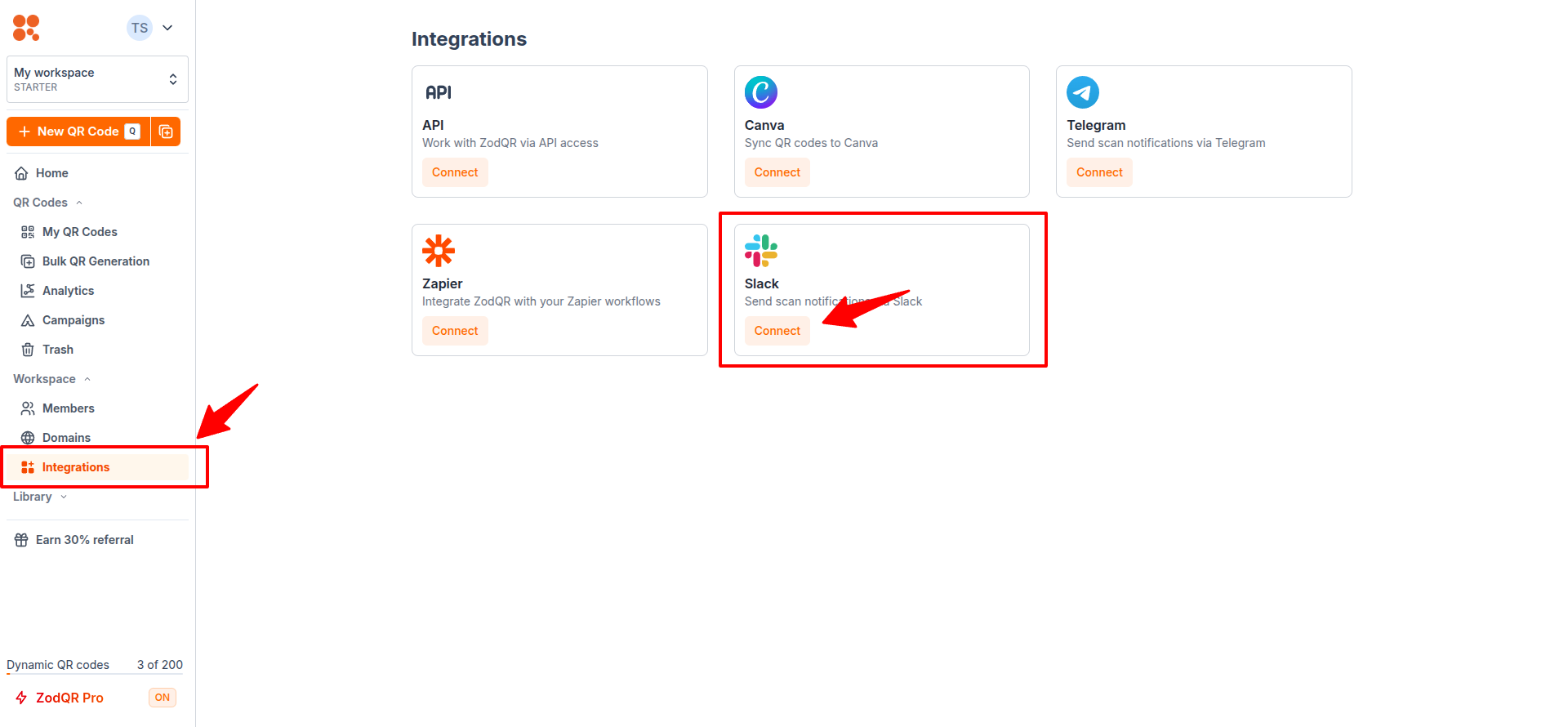
Then click Connect Slack workspace, you'll be directed to Slack authentication page. Here, allow ZodQR Noti app to send notification to your channels by granting requested permissions.
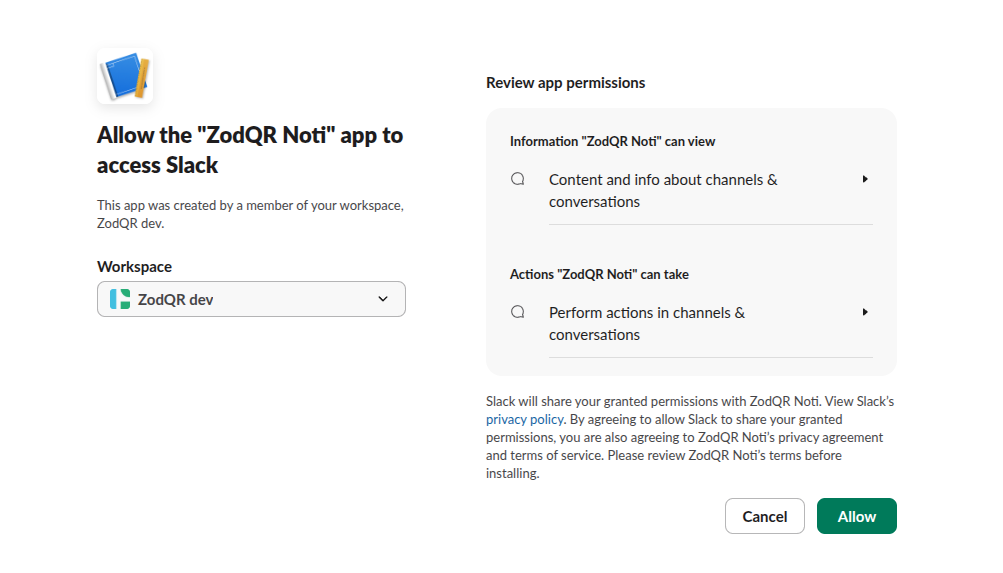
After allowing, you will be directed back to ZodQR. ZodQR clearly show you your Slack workspace has been connected:
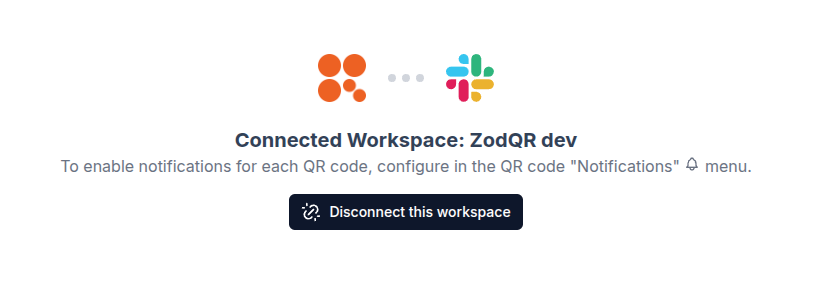
2. Config QR code for reports
After connected to a Slack workspace, go to ZodQR Dashboard > My QR Codes. Select a QR you want to send report, and click the Notification button.
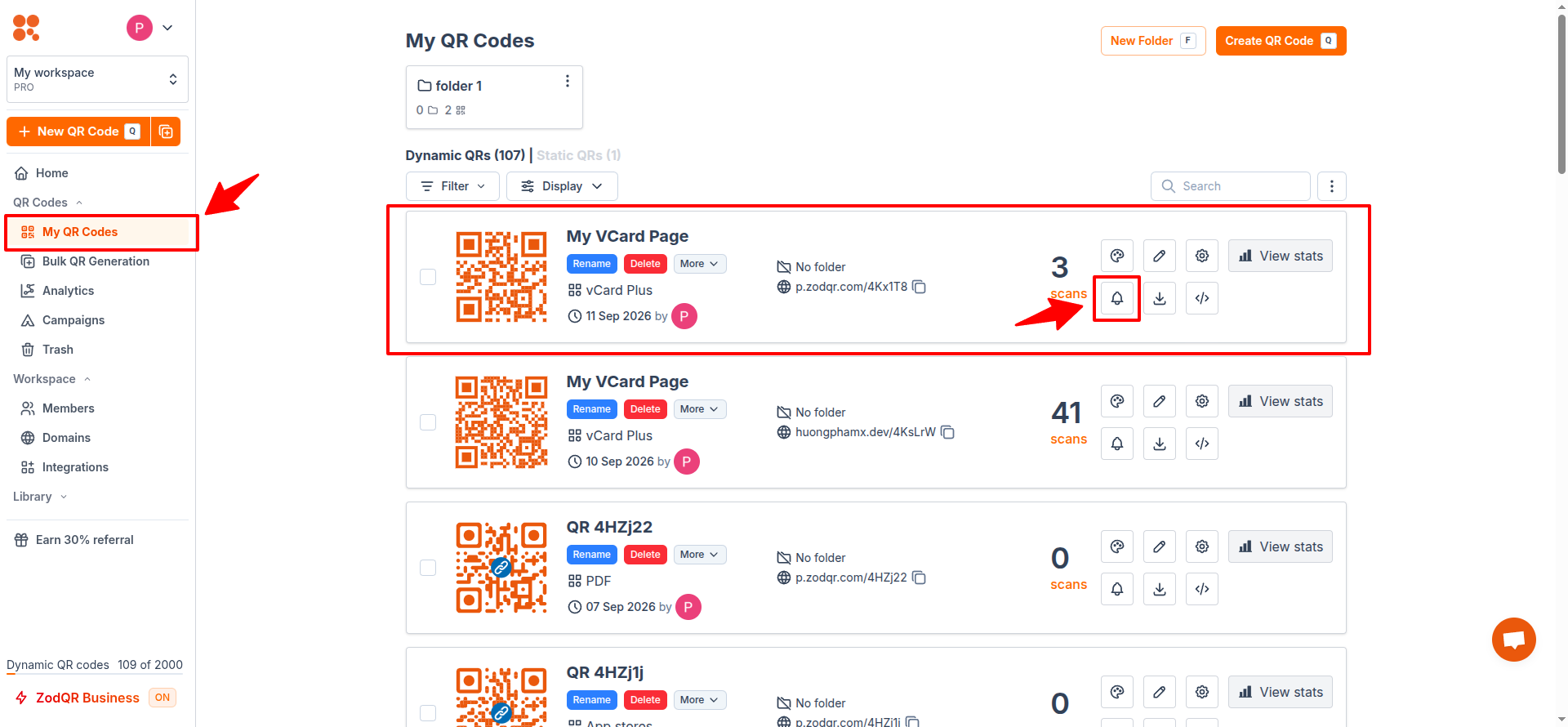
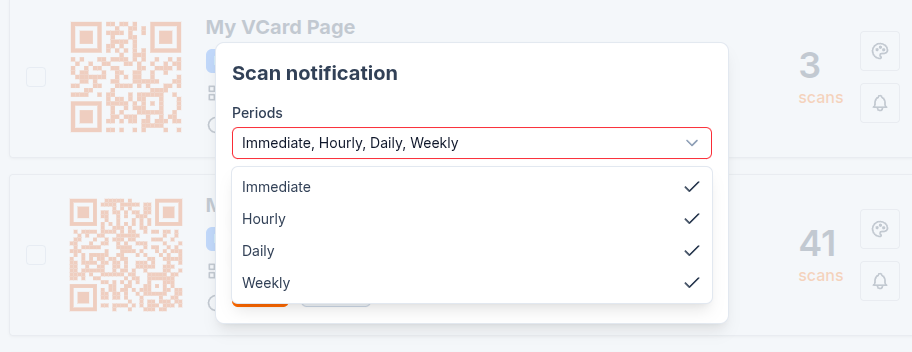
Select periods of notification you want to send. Here, I select all available periods
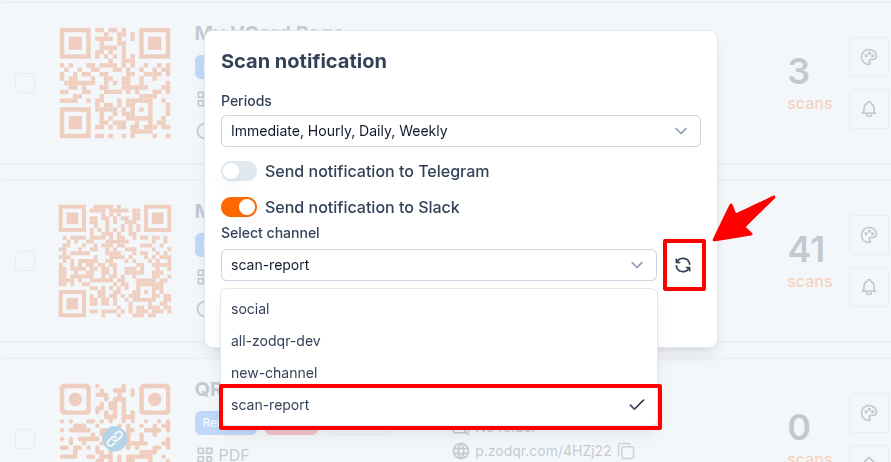
Enable Send notification to Slack, then select the channel(s) for reports. These channels are fetch automatically when you connect to Slack workspace. If you add new channel after the connection, click Refresh button fo re-fetch.
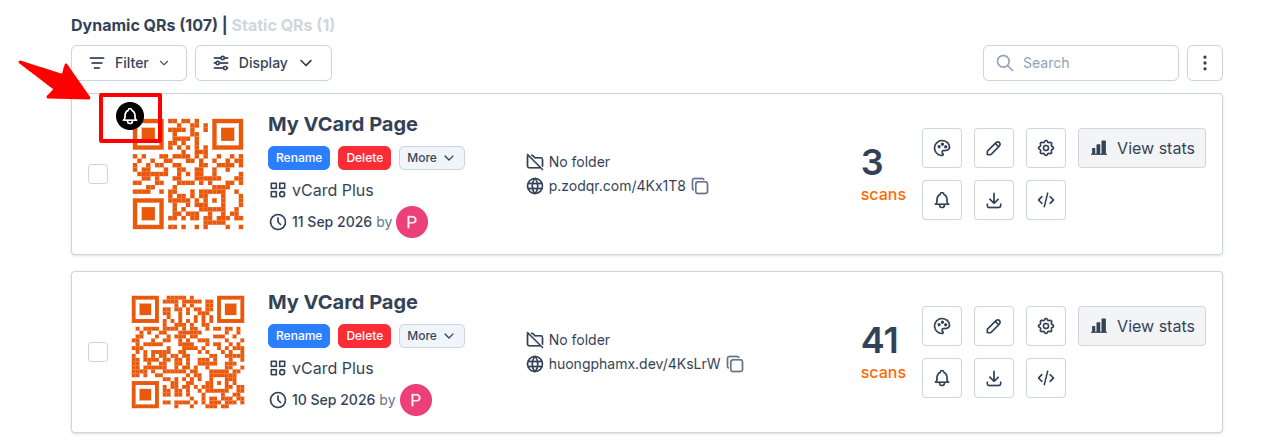
After finished, click Save. A QR code with notification will have a small icon on the QR corner.
How to disable Slack notification
To disable Slack notification for a QR code, click the Notification button on the QR code card. Then, switch the Send notification to Slack option to off. Click Save to save config.
You now no longer receive notification from that QR.