
Convert MP3 and Audio into QR Code
In this guide, we'll go through step-by-step guide to convert a MP3 or Audio file into a QR code with mobile-friendly music player. Customize your page with photo, CTA and more.
 Huong PhamUpdated: 2026-10-21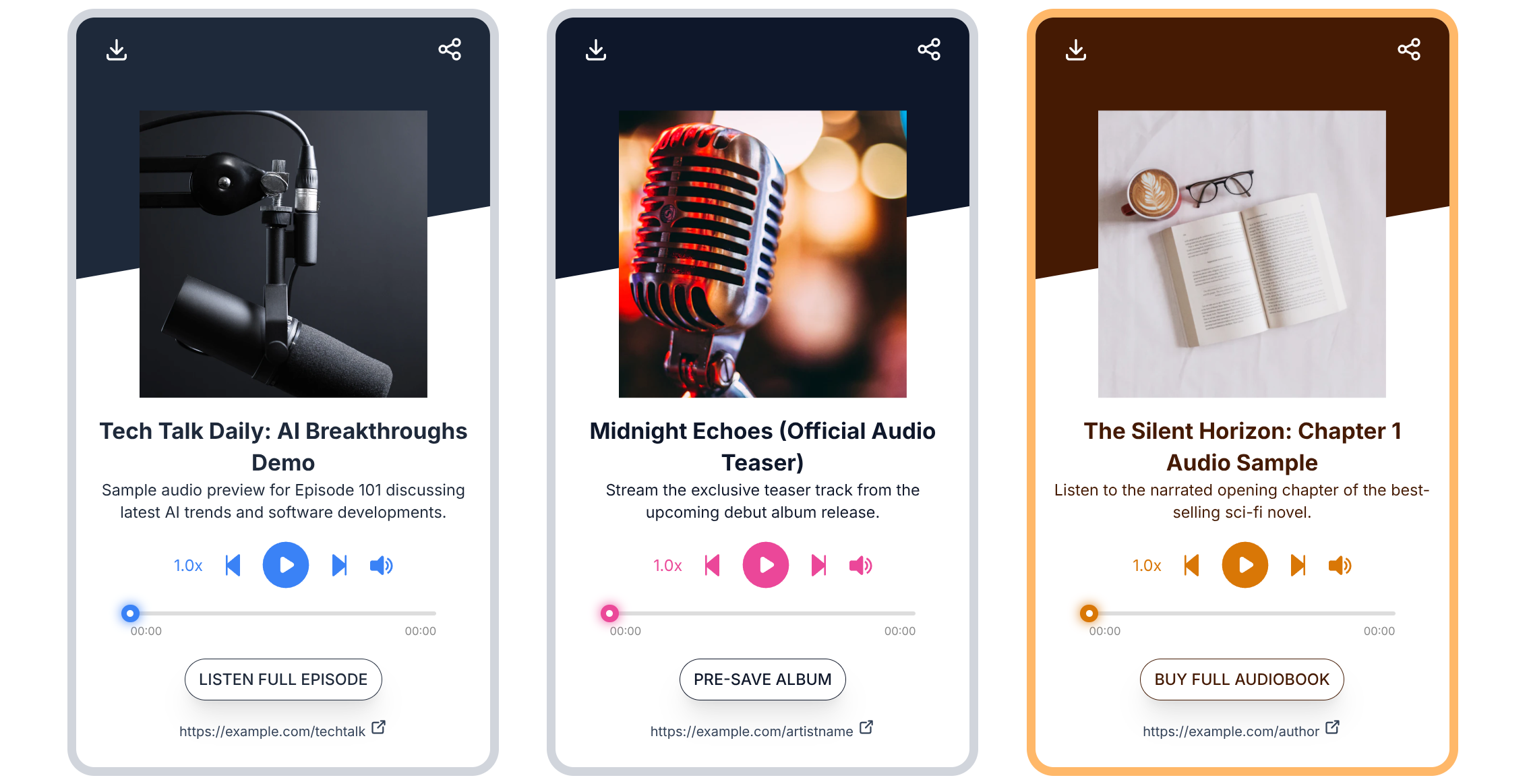
An MP3 QR code featuring a mobile-friendly page and built-in MP3 player is a great way to share a song, audiobook, voice tour, audio guide, and more. Stop sharing boring audio links—add a photo, customize your page, add a CTA (call to action), and more with ZodQR's free MP3 QR code generator.
Your QR code will never expire, get unlimited scans, and can be edited anytime for free.
Step-by-step guide to converting an audio file into a QR code
We will use ZodQR's free MP3 QR Code Generator to convert an audio file into a QR code in a few easy steps.
1. Upload an MP3 file
Click Select file to upload in the Audio file section. Select the file you want to convert into a QR code. ZodQR supports multiple audio formats, but MP3 is recommended.
Once the file is uploaded, a built-in MP3 player with controls (speed, volume, play/pause) will appear. To add a download button, check Add download option under the upload field.
An audio file is the only required field for an MP3/Audio QR code, but you can further customize your page in the next step.
2. (Optional) Customize the MP3/Audio page
Add more content to make your page better looking:
- Upload cover image
- Add title and description
- Add CTA button with a link
- Add website address, and a share button so anyone who scans the QR code can share it via links or social media
You can also customize the page color palette by clicking the Page styling tab.
3. Customize the QR code
After completing the QR content, click Style QR code to customize the QR image. All customization options are available for free to all ZodQR users:
- Change QR patterns (body and eyes)
- Set pattern and background color
- Add logo to center of QR
- Add a frame with text, e.g., "SCAN TO LISTEN"
When you are done styling your QR code, click Save QR code. You will be asked to sign up for a free account to save and share your QR code. Once signed up, your QR code will be auto-saved—it will never expire and includes unlimited scans.
Change your audio file without changing the QR code
You can change the audio file or other page content while keeping your QR code the same. This is especially helpful for keeping your audio up to date without having to reprint your QR code.
To update MP3 QR code content:
- From the Dashboard, click the edit button for the QR code you want to update.
- To replace the audio file, click Select new file.
- To update page content, enter the new text or select/unselect your preferred options.
- When finished, click Save changes.
Your new QR code content will take effect immediately.
Get inspired with MP3 QR code use cases
- Podcast Episode Preview MP3 QR code
- Music Album Single Release MP3 QR code
- Audiobook Chapter Sample MP3 QR code
For more examples, visit this page.