Coupon QR Code
Detailed guide to create and manage coupon QR code.
Coupon QR code is free for all ZodQR users. For Benefits, Use Cases and Examples for Coupon QR code, visit our Coupon QR code solution page.
How to create a Coupon QR code with ZodQR?
To create a Coupon QR code, login to your ZodQR account and follow the steps below:
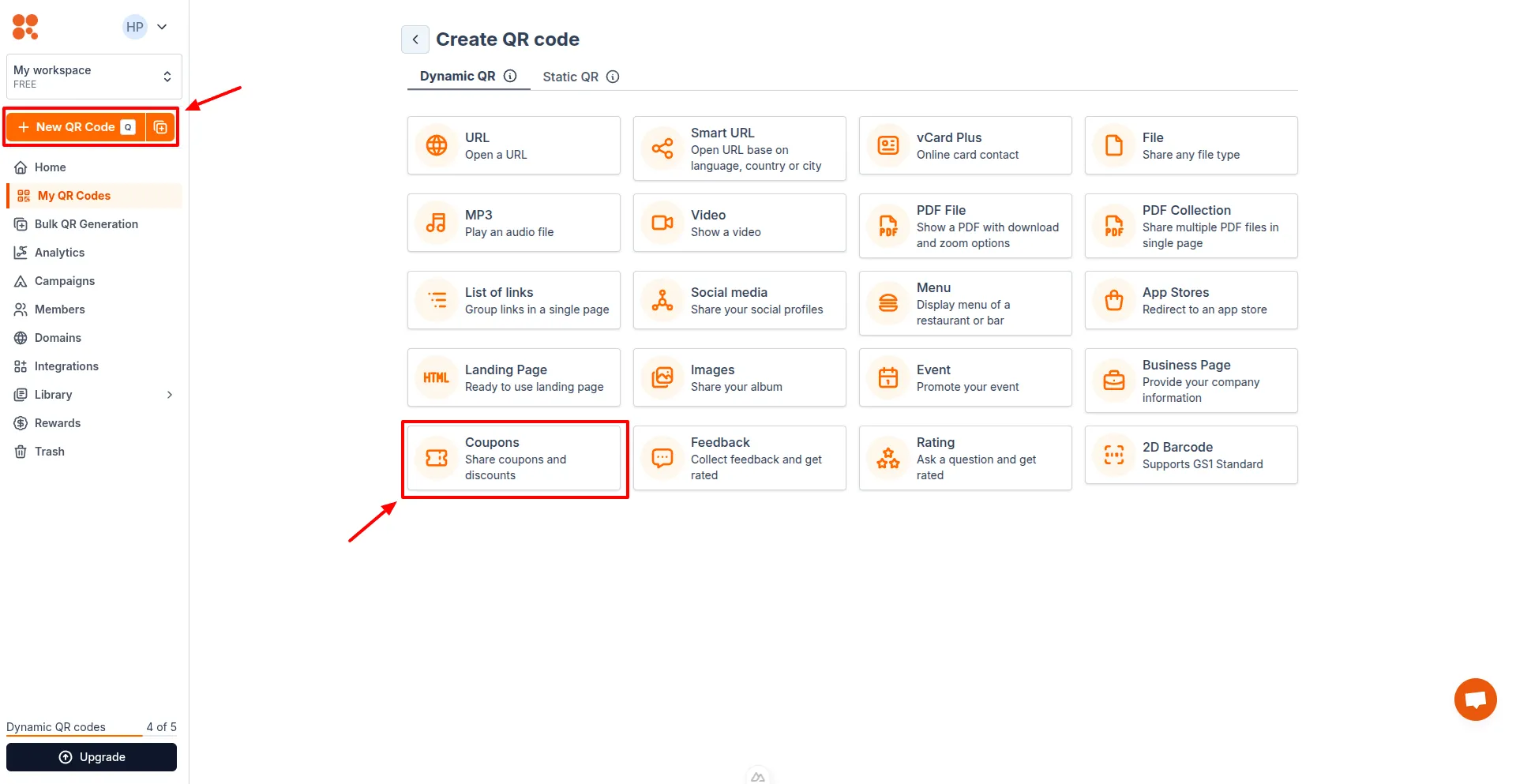
- Select Create QR Code in the Dashboard and choose Coupon.
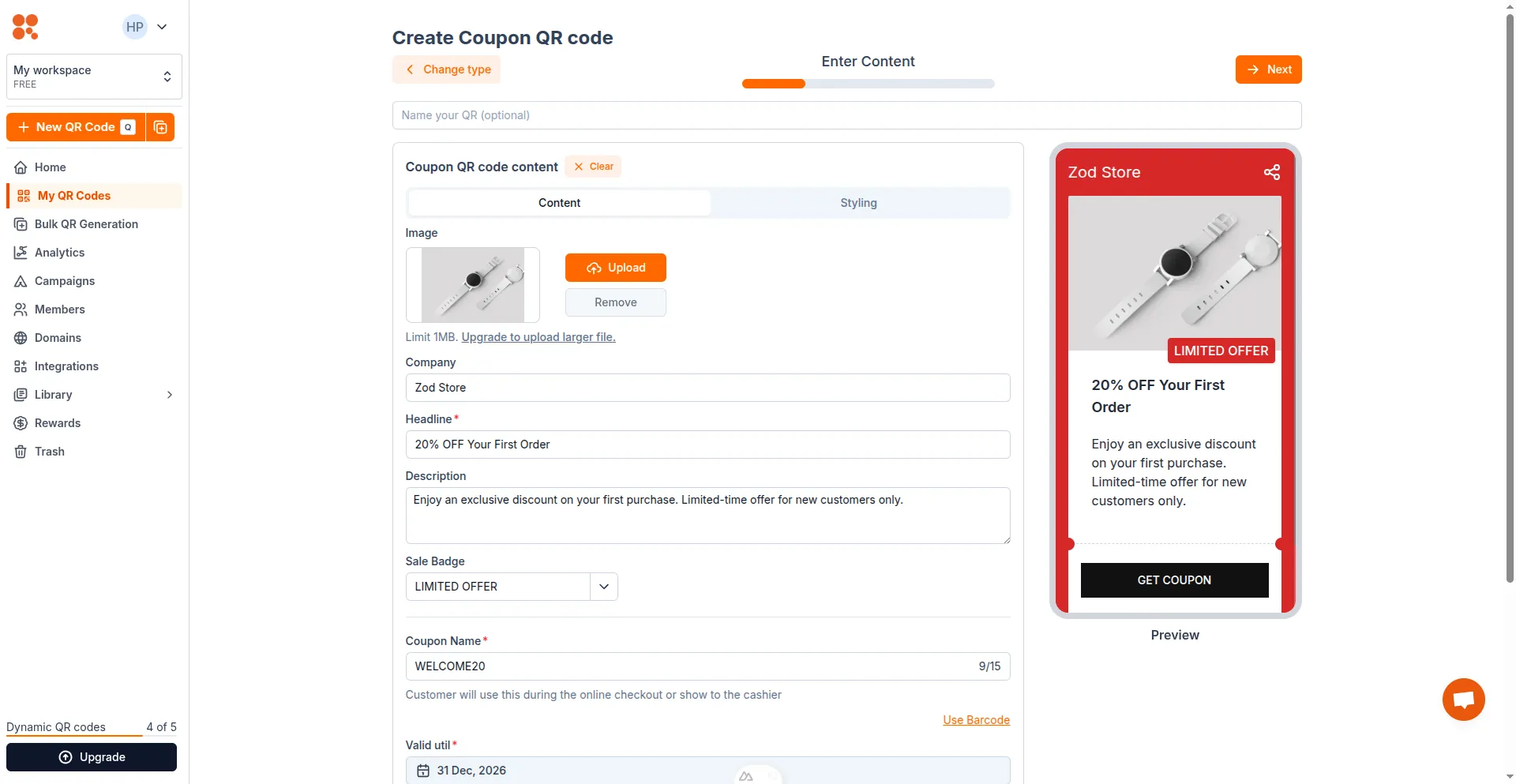
- Enter QR code content. With Coupon QR code, add the following content:
- An image for coupon, that can be your business photo, product image, or just a descriptive image for the coupon.
- Name of your business/company, coupon headline and description
- Sale badge, such as LIMIT OFFER, 20% OFF,...
- Coupon name / discount code - customer will use this during the checkout
- Expire date of the coupon
- Additional details about the coupon: terms & conditions, website to redeem, your business location.
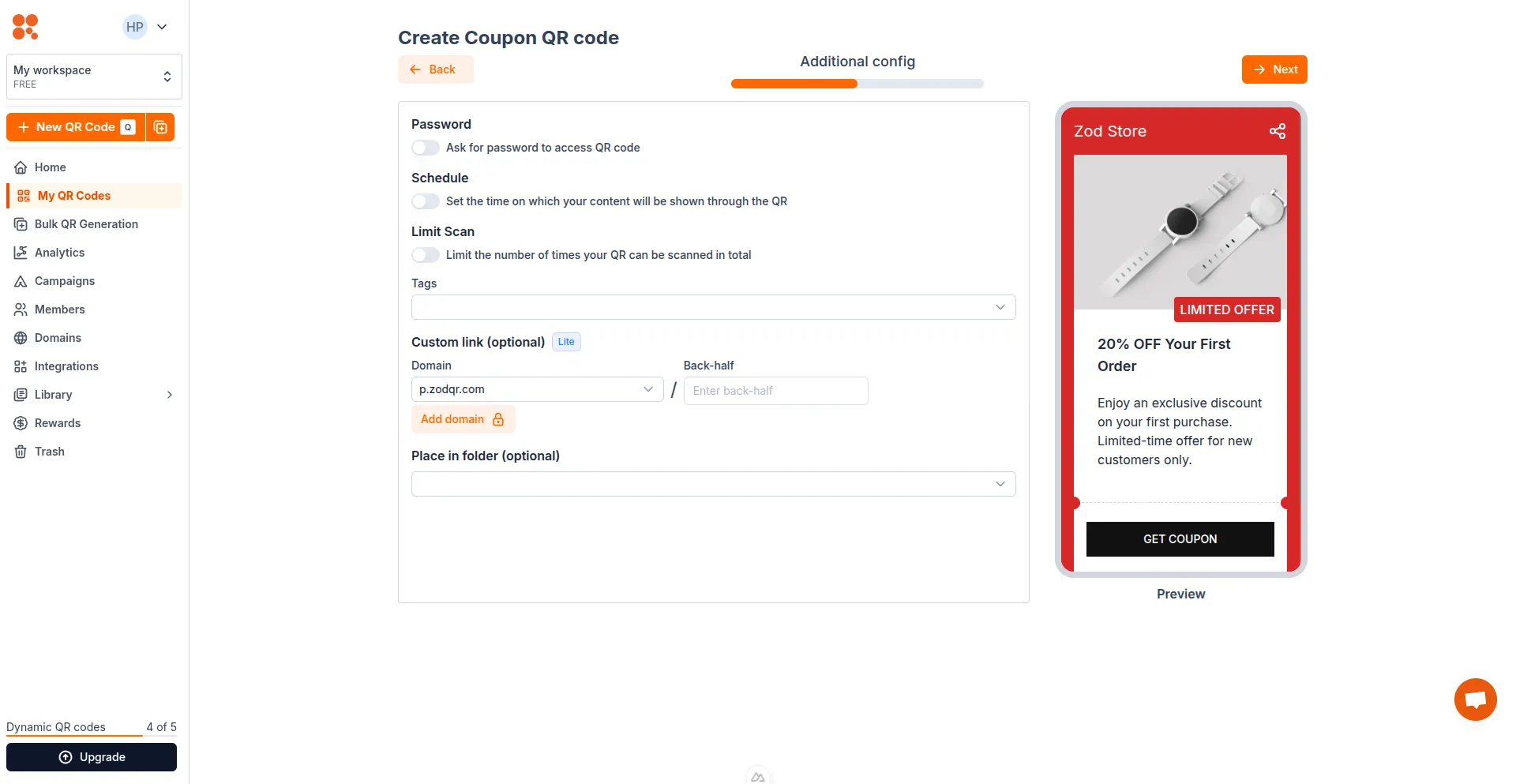
- Config your QR code. Here you can set password, schedule or set scan limit for your QR. You can also add tags, customize your QR link or place your new QR in a folder for better management.
 After finished, select Next.
 - Styling your QR code: you can customize QR code's shape, color, logo to match your brand needed.
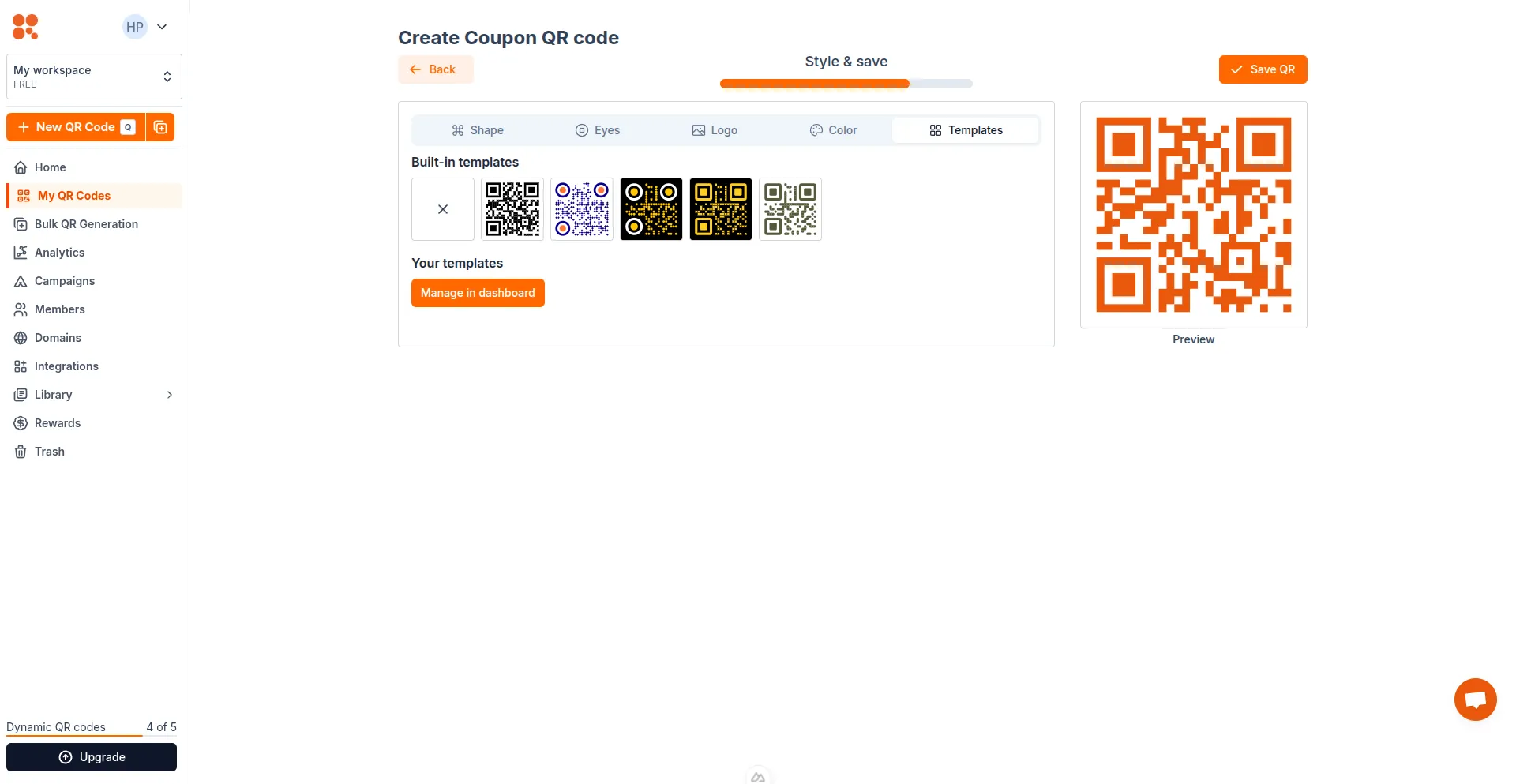 After finished, click Save QR.
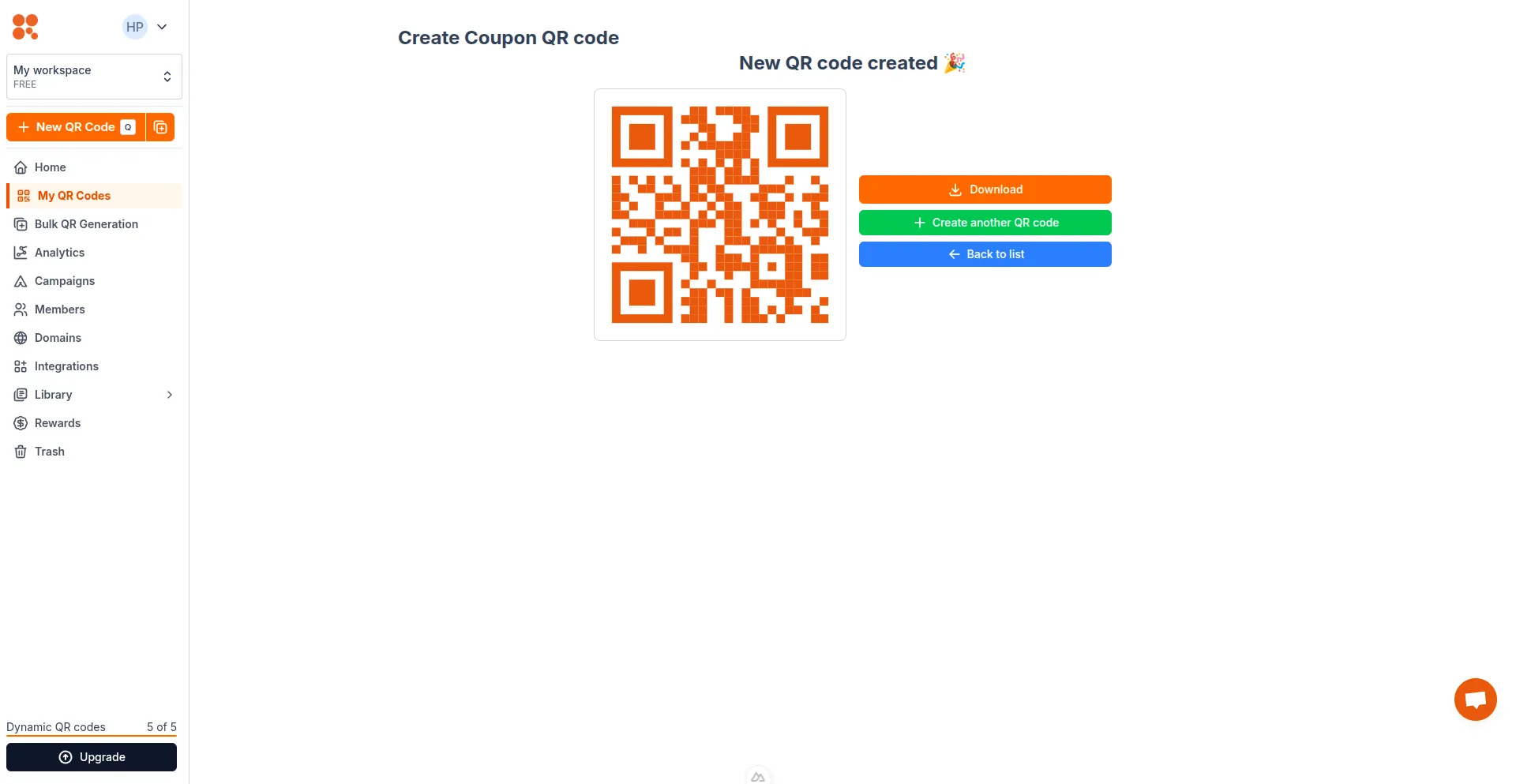
 - Your QR code is now generated. You can download it right away (remember to test scanning your QR code), create another one, or back to QR list to manage all existing QRs.