
App Stores QR Code Generator
Create free App Store QR code for multiple app stores link. Add logo, info and customize to match your brand.
QR Content
ZodQR
Zod Studio

Create dynamic QR codes, track scans in real time, and manage campaigns with ease.
Download on the
App Store
Get it on
Google Play

Available on
Galaxy Store
Explore on
AppGallery
Preview
Preview
We only provide dynamic QR codes for App Stores since they contain a lot of data.
Design
Body Shape










What is an App Stores QR Code
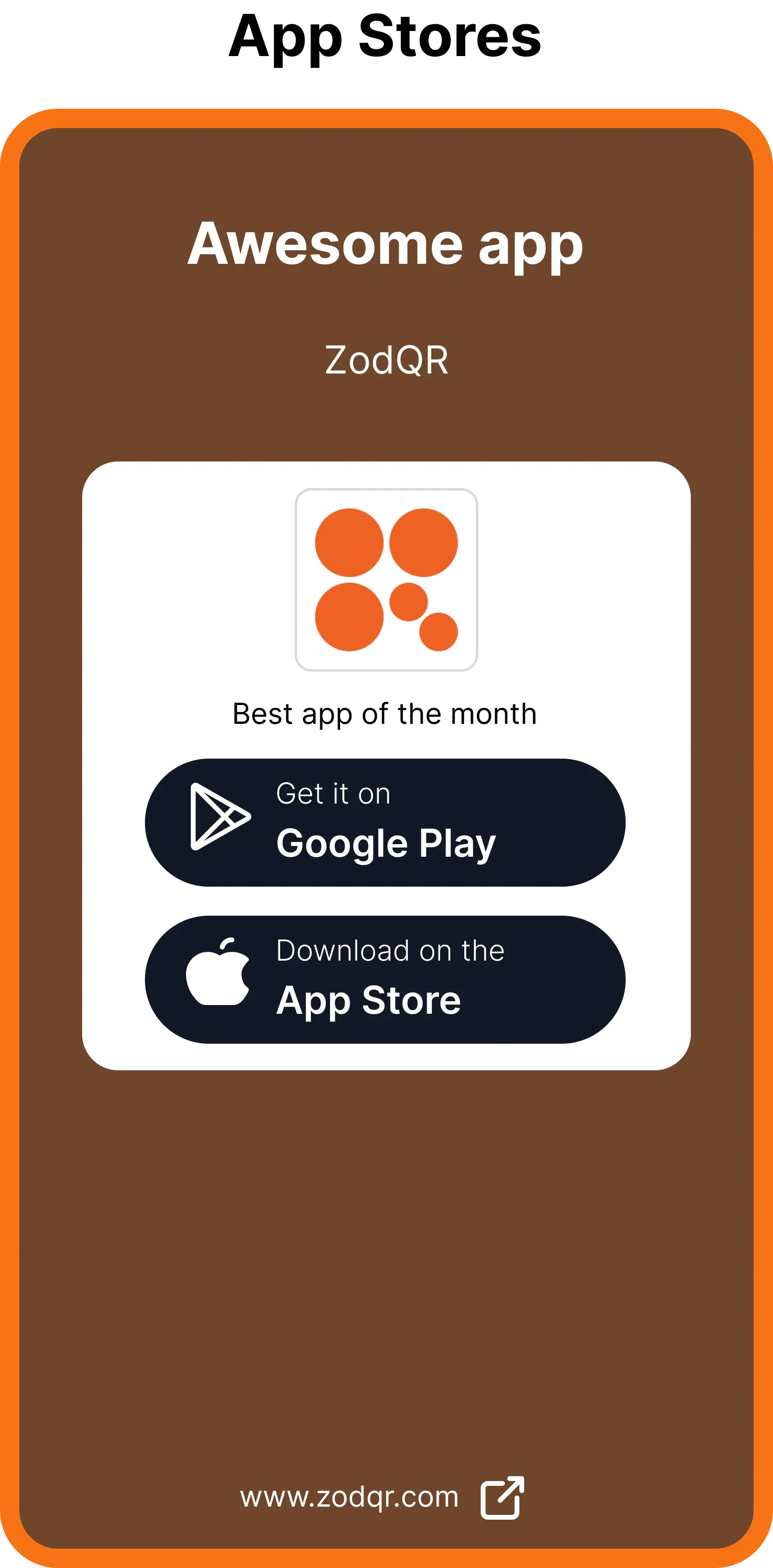
An App Stores QR Code lets share download link for multiple platform in a mobile-friendly page.
Because this is a dynamic QR code, you can update the links anytime without reprinting the QR and track scans to optimize your app promotion.
How to Create an App Stores QR Code
With ZodQR, you can start creating an App Stores QR codes for free without an account. Sign up later to manage your QR codes, track scans, and update contact information anytime.
Step 1: Add app info
Enter app name, developer or company own the app, add description and website.
Step 2: Add links to multiple platforms
Add download link for Apple App Store, Google Play Store, Samsung Galaxy Store and Huawei App Gallery.
Step 3: Generate QR code
Customize & generate your vCard QR code. Download the QR code image or share the link directly. You can update the contact information anytime without changing the QR code.
Best Use Cases for App Stores QR Codes
Print marketing & flyers
Place an App Store QR code on posters, brochures, billboards, and flyers. Direct users instantly to the correct store page (iOS or Android) to download your app without manual searching.
Product packaging
Add QR codes to product boxes, user manuals, and tags. Allow customers to seamlessly download your companion or setup app immediately after unboxing.
In-store & point of sale
Display QR codes on checkout counters, table tents, or window displays. Encourage shoppers to download your app for instant loyalty rewards, discounts, or digital menus.
Events & tradeshows
Drive app downloads during conferences, expos, and live events. Attendees can quickly scan banners or badges to access event apps, schedules, or interactive experiences.
Website & landing pages
Include an App Store QR code on your desktop website so visitors can easily bridge the gap from desktop to mobile and download your app to their phones.
Outdoors & transit ads
Feature QR codes on subway ads, bus stops, and digital billboards to capture potential users on the move, giving them quick access to download your app in seconds.
FAQ
Ready to create your App Stores QR Code?
Get started with our easy-to-use platform. Free forever for basic use.