
QR Codes on Business Cards
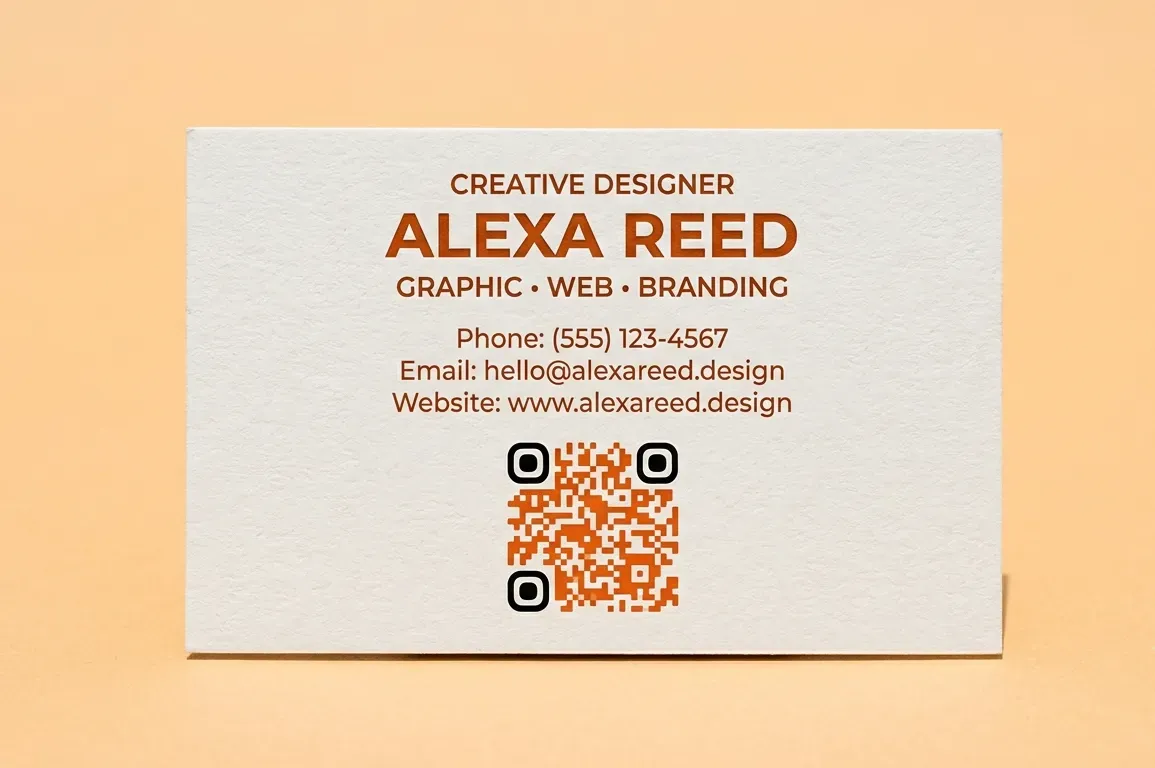
If you are only printing your name and contact information on your business card, you are missing out on an opportunity to stand out from other professionals. By simply adding a QR code to your business card, ZodQR helps you pack a wealth of information onto a tiny card: showcase your business details, highlight your past work, and share so much more—all with just a single scan.
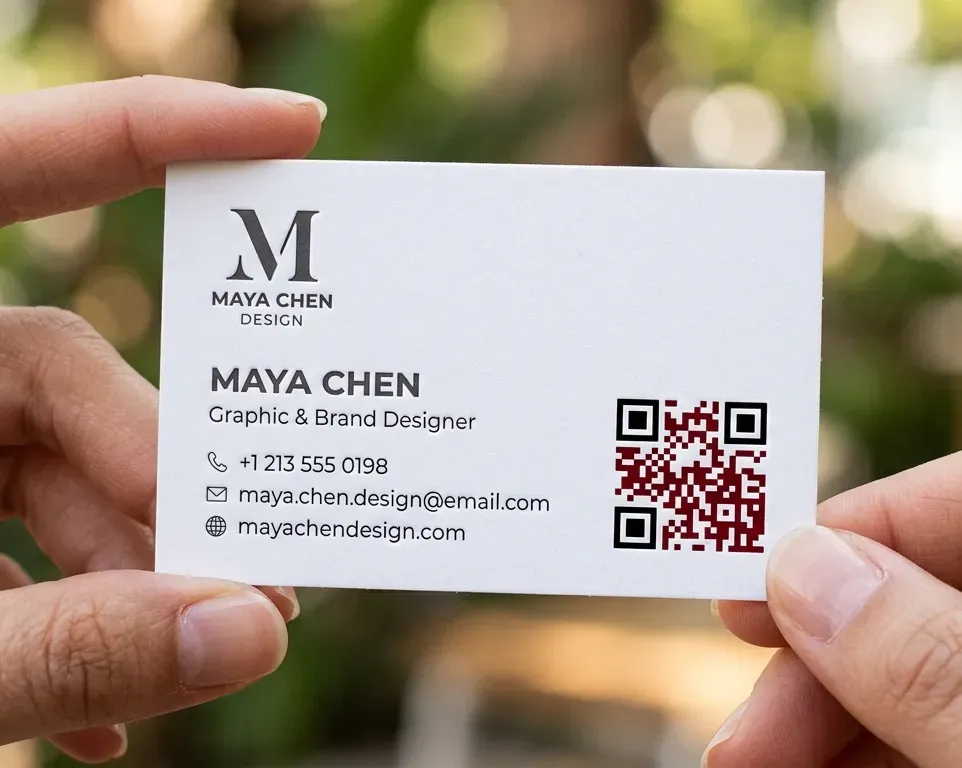
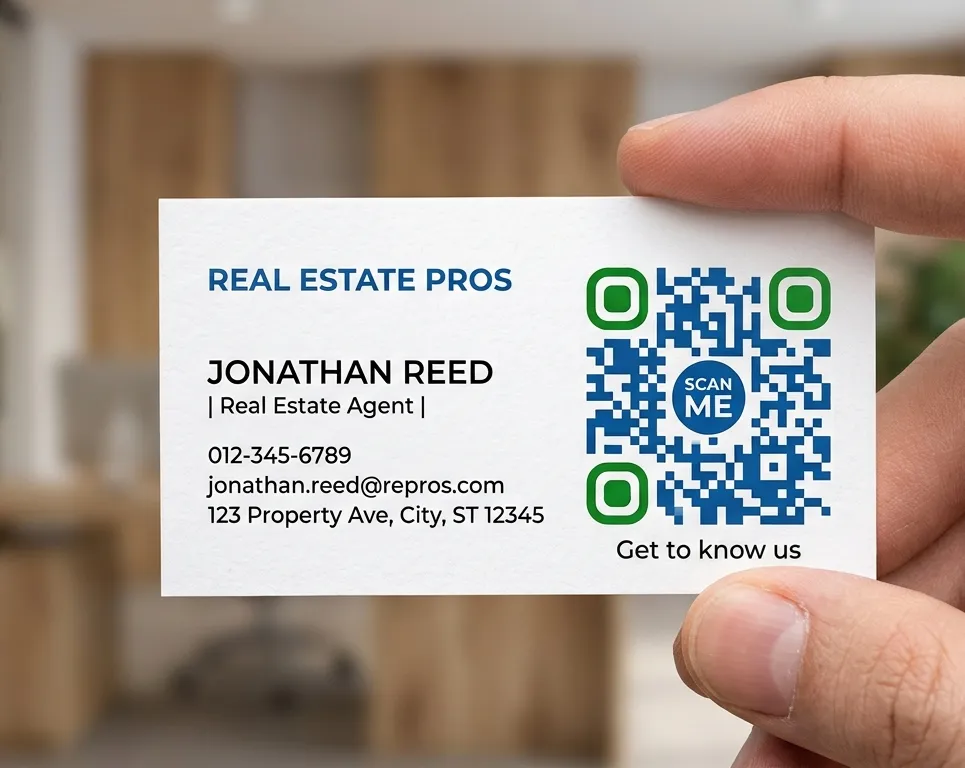
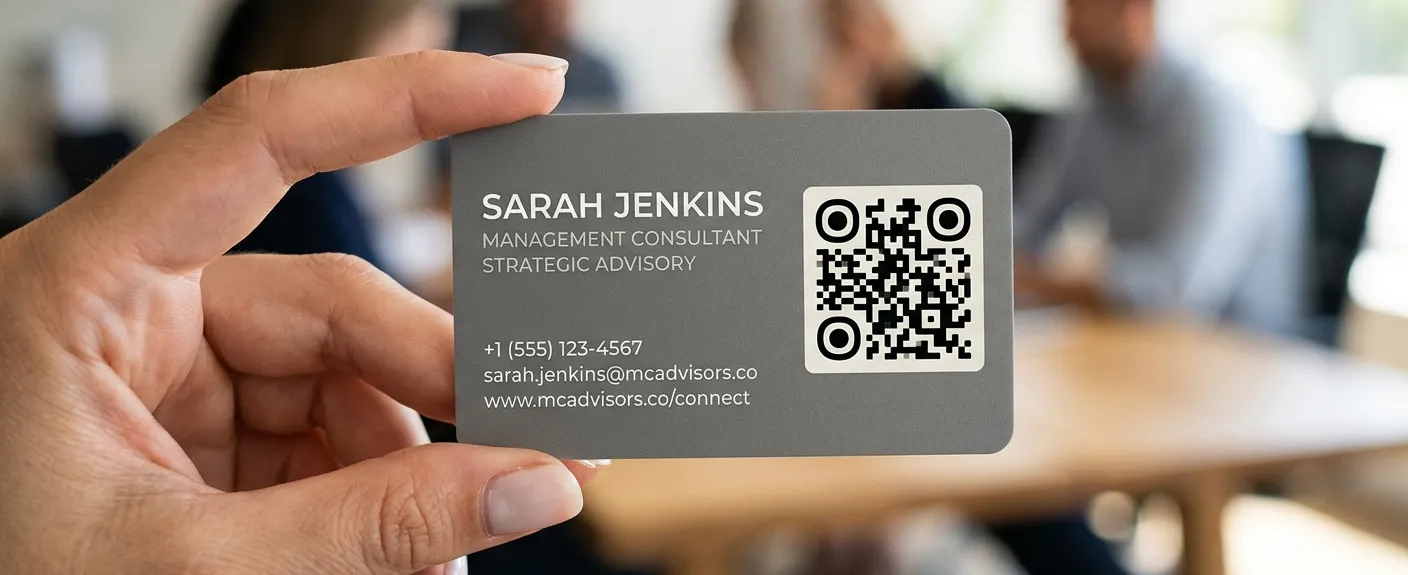
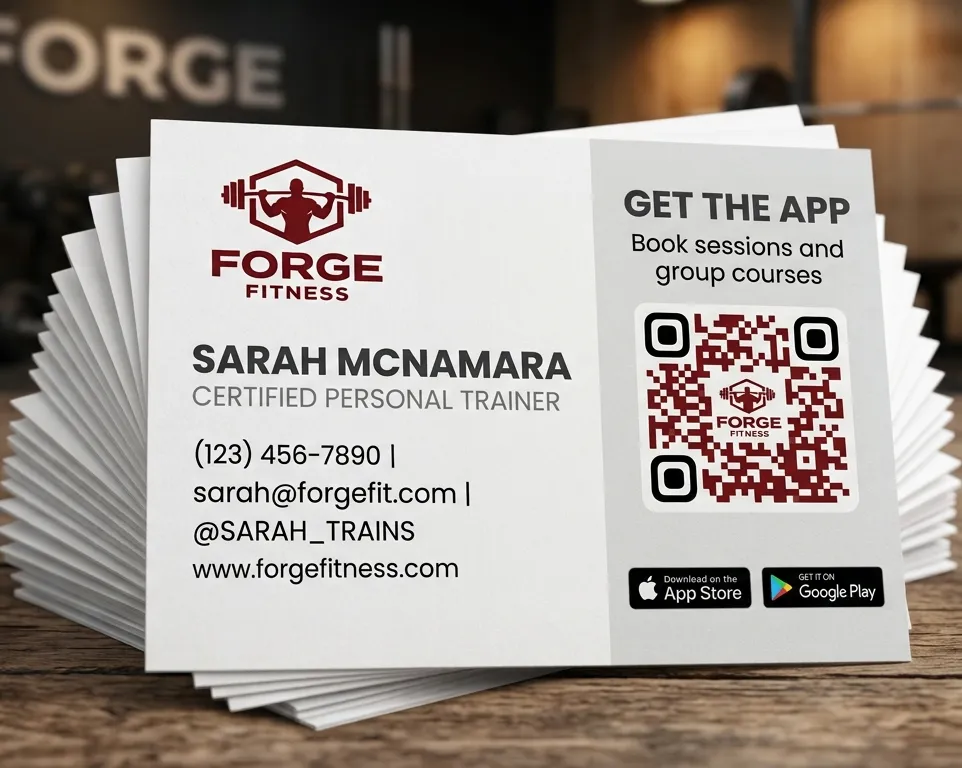
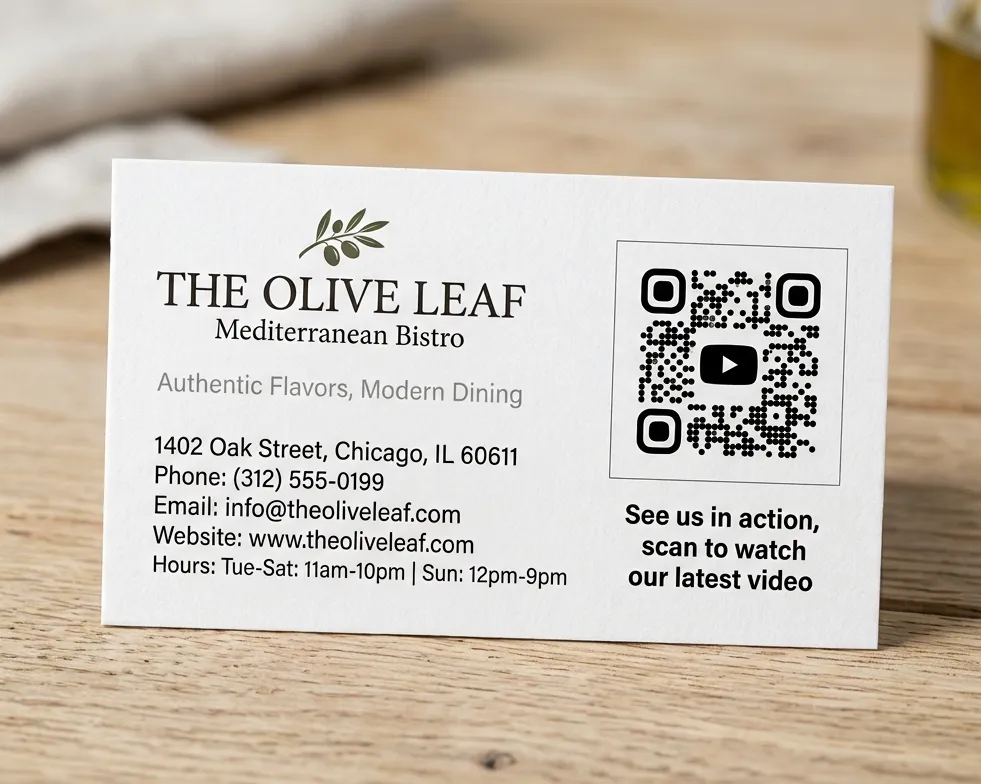
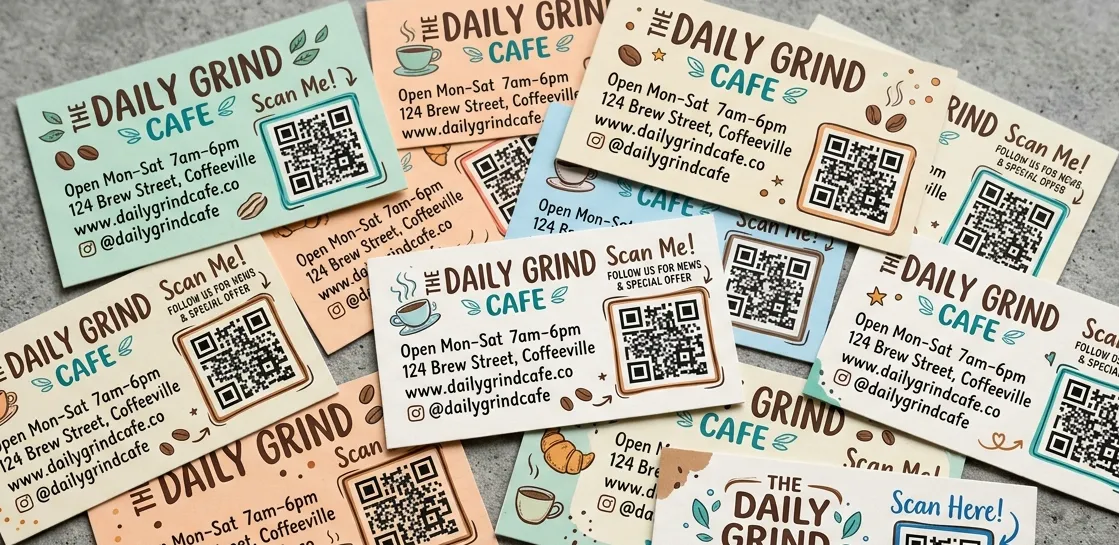
Benefits when Putting QR Codes on Business Cards
Paper business cards are classic tools for making connections and growing your network. But what if you could make yours work way harder? Imagine making it effortless for new contacts to save your phone number, check out your company, or see your portfolio on the spot. Adding a QR Code to your paper card makes all of that happen in seconds. Here are a few great reasons to try it:
1. Simple, quick networking
Putting a vCard Plus QR Code on your card means new contacts can save your details straight to their phone address books. No tedious typing required—they just scan and tap save.
2. Boost your social media channels
In a similar way, a Social Media QR Code connects people directly to your online profiles. This builds your online audience while keeping clients informed about your latest projects, announcements, and events.
3. Show off your work in one tap
People naturally prefer working with someone whose work they can trust. What better way to build that trust than by sharing your best projects instantly? A Dynamic URL QR Code lets your card link straight to client stories, your personal blog, or live projects—perfect for freelancers. If you make music, an MP3 QR Code lets folks listen to your tracks directly from your card. And a PDF QR Code links straight to your resume or portfolio documents, saving you from hauling stacks of paperwork to job fairs. You can also convert multiple PDF documents in a single QR code using PDF Collection QR Code.
4. Keep your clients in the loop
Adding a Business Page QR Code gives people immediate access to your open hours, physical location, map directions, contact numbers, and social links. Operating an online store? You can add a quick button that points right to your shop, photo collection, or website to help sell your products.
How to Put a QR Code on Your Business Card
- Sign up and and head over to Dashboard.
- Click New QR Code and select one of our recommend QR code types above. A vCard Plus QR code is a great starting point. *
- Fill in all the personal or business details you want to share.
- Customize how it looks by custom shape, color and even add your own logo.
- Click Generate QR code in the final step.
- Hit ‘Download’ to save your image file. You can choose between PNG, JPEG or SVG format for free. EPS and PDF format also support for a paid account, but for a small QR code on the business card you likely don't need those high resolution QR code.
- Drop your freshly made code into your business card print layout.
* A vCard Plus QR Code lets you include extra details, add a profile picture, and update your information anytime without reprinting your cards. You can also unlock custom frames and upload your own logo.
Best Practices for QR Codes on Business Cards
QR Codes have evolved far beyond basic black-and-white squares. With plenty of custom, user-friendly options, you can design engaging codes that capture attention and elevate your brand image.
1. Include a short call to action
A common mistake is printing a code without telling people what they get by scanning it. Always include a short note explaining the benefit, or people might just scroll past it without scanning.
2. Give it a stylish frame
Use custom frames to help your code match your card's visual design. The design tool offers plenty of premade frames featuring clear Call to Action (CTA) lines and color choices. Want something unique? Modify the shape, pick an icon, or add your own text.
3. Place your logo in the middle
After picking your frame, shape, and colors, try adding your company logo right in the center of the code. The generator automatically sizes your uploaded graphic so your code remains completely scannable, saving you the technical hassle.
4. Save your favorite designs
Never worry about recreating your brand design from scratch. ZodQR lets you save your custom styles as reusable templates for future print materials or marketing campaigns.
5. Create a custom web link
Dynamic QR Codes create a shortened web link that redirects scanners to your chosen destination. You can customize this short link with your business name, helping build trust with scanners while making your brand stand out.
6. Always test before you print
We recommend printing your QR Code at a minimum size of 2 x 2 cm (about 0.8 x 0.8 inches). You can always go bigger, but going smaller makes it hard for camera lenses to read. Busy patterns, faint colors, or lots of packed data require a larger print area. Before sending a big batch to the printer, test your code using multiple phone models and scanner apps to confirm it works smoothly.
Real Examples of QR Codes on Business Cards
Unsure how this looks in practice? Here are a few everyday examples showing how different businesses use QR Codes on their cards to streamline their operations.
Professional Services
Meet Elara Vance, Principal Architect of Aethelred Architecture. By placing a vCard Plus QR Code on her cards, she makes saving her details quick and effortless for clients. Even if she runs out of paper cards, she can pull up his digital card on his phone screen for instant scanning.
Restaurants & Cafes
Southern Restaurant wanted a seamless way for guests to check operating hours and directions. They printed a Business Page QR Code on their mini cards. Now, a quick scan gives customers instant access to open hours, active menus, location maps, and social profiles.
Local Government
The team at the Crestview City Council wanted a faster way to share contact details during public meetings. By printing codes on their staff cards, citizens can scan to grab office phone numbers, email addresses, public links, and appointment schedules in seconds.
Musical Artists
The Rusty Road, an indie country band, wanted an easy way to share their sound while on tour. They printed an MP3 QR Code on their promo cards. Potential booking managers can scan the card to stream sample tracks instantly, with a handy "Book Now" button built right into the landing page.
Creative Photographers
Carrying a portable portfolio is simple for Story Focus Media Productions. They added an Image Gallery QR Code to their cards, letting prospective clients view a curated gallery of their best photo work instantly. They even included a direct booking link to convert views into actual client hires.
With a Dynamic QR Code, you can update your links or destination content whenever you like without having to print new paper cards. Sign up a free account and generate any type of QR code for free, with unlimited scans and never expire. To see more real-world examples, browse our dedicated QR Codes For guide page.
Questions & answers
No! People often think QR codes have to be plain black and white, but you can actually use almost any color palette that fits your brand. Just make sure the contrast isn't too light so people can easily spot and scan it. For design ideas, check out our QR Code Design guide, or head over to our Help Center if you need technical support.