
Manage QR code templates
Learn how to manage your QR code templates in ZodQR. Step-by-step guide to create, edit, and delete QR code templates for consistent branding and design.
In ZodQR, you can create and manage QR code templates to maintain consistent branding and design across all your QR codes. This guide will walk you through the steps to create, edit, and delete QR code templates.
Create a QR Code Template
- Log in to your ZodQR account.
- From the dashboard, navigate to the
QR Templatespage. - Click on the Create QR Template button.
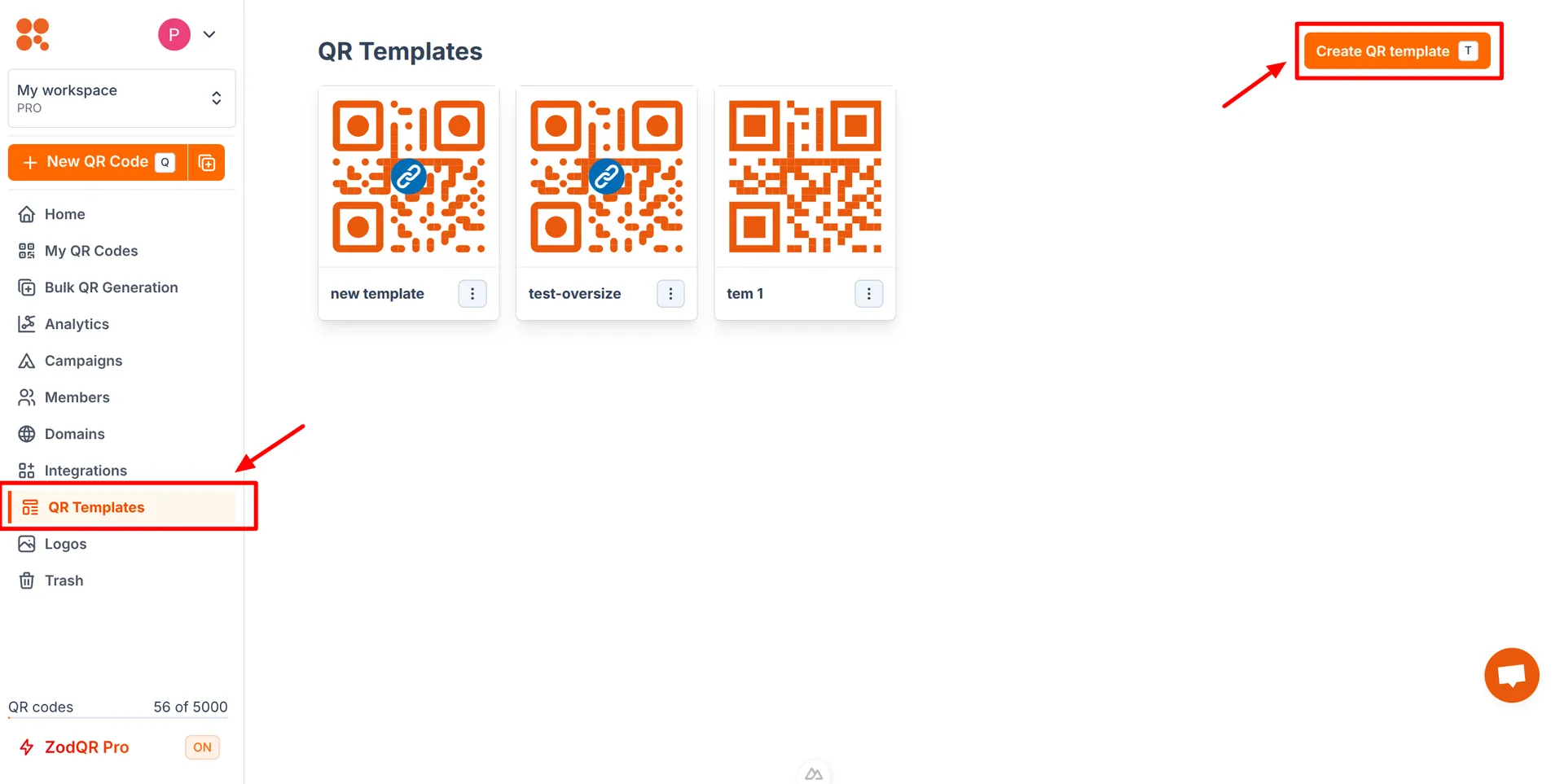
- Fill in the template details:
- Template Name: Enter a name for your template.
- Template Style: Customize the design of your QR code by selecting colors, shapes, and adding a logo if desired.
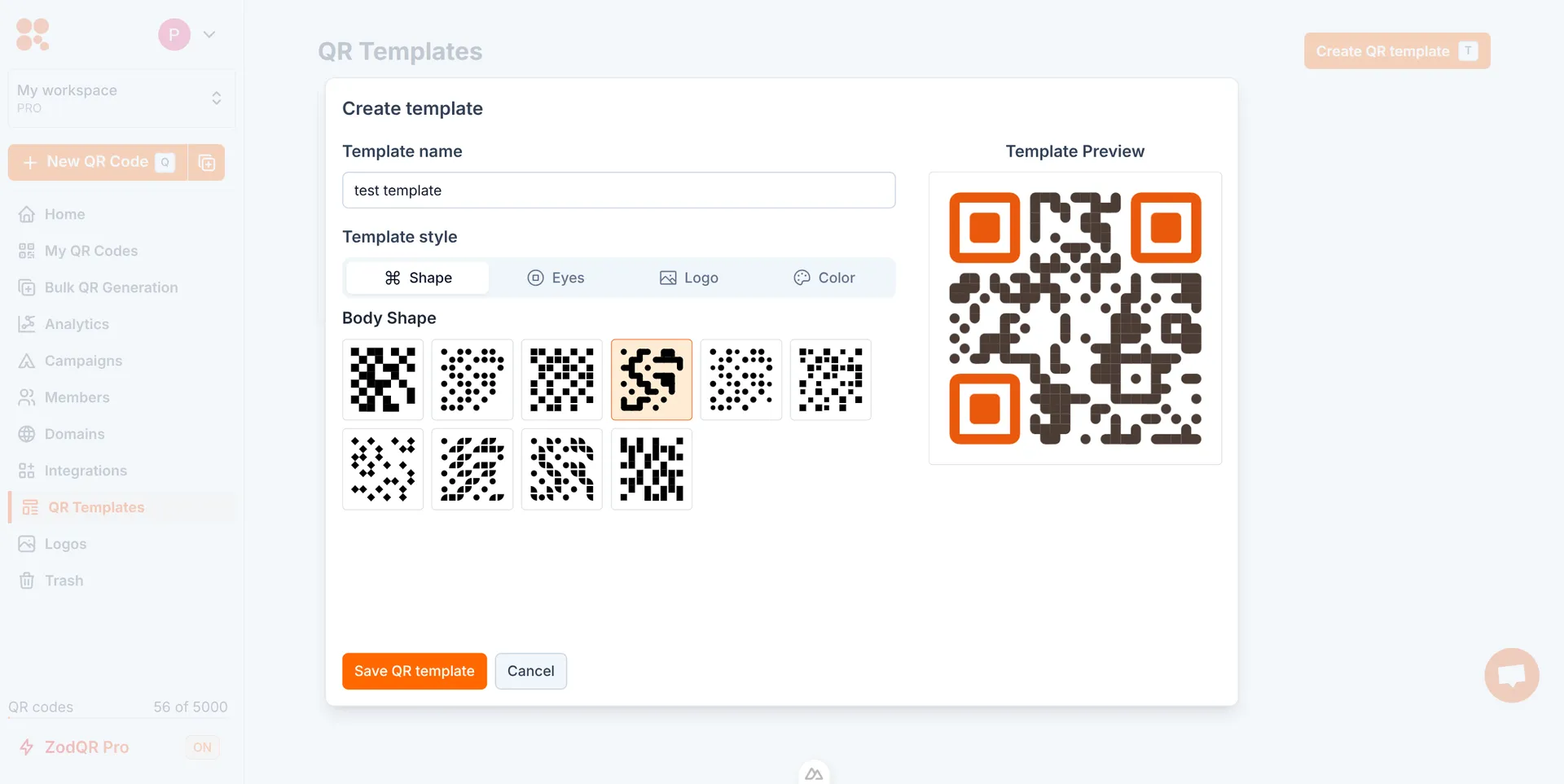
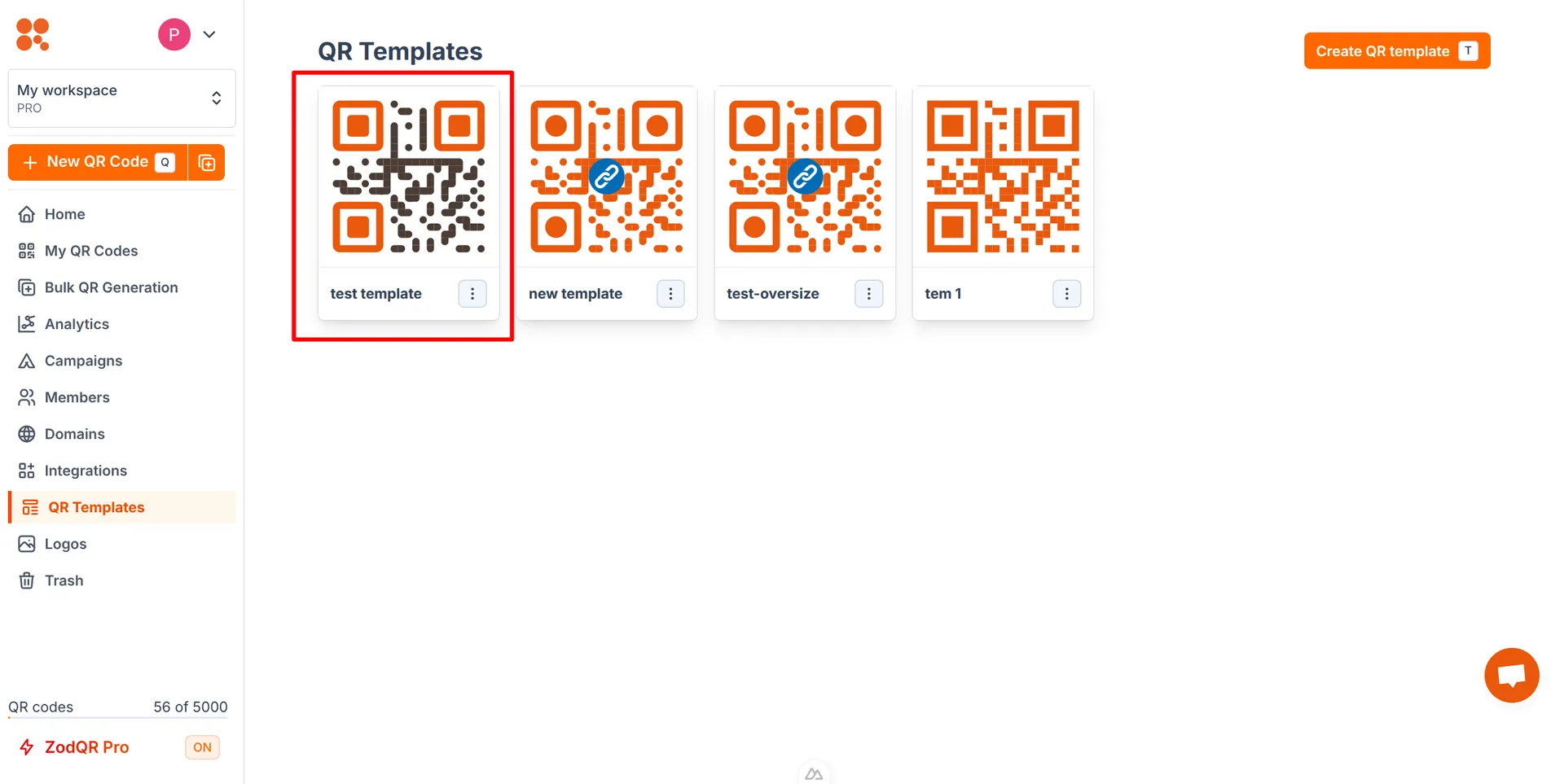
Once you have customized your template, click Save QR Template to create the template.
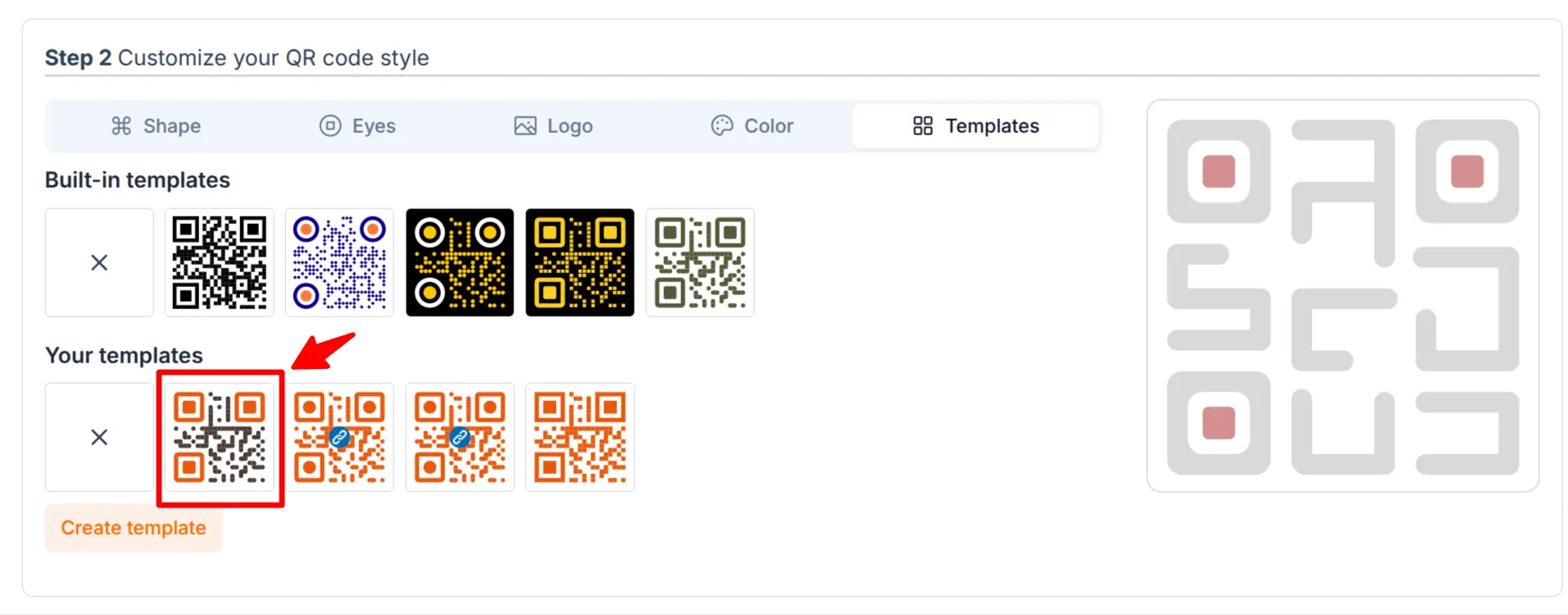
- Your new template will now be available for use when creating QR codes.
Edit a QR Code Template
- From the
QR Templatespage, find the template you want to edit and click on Edit button.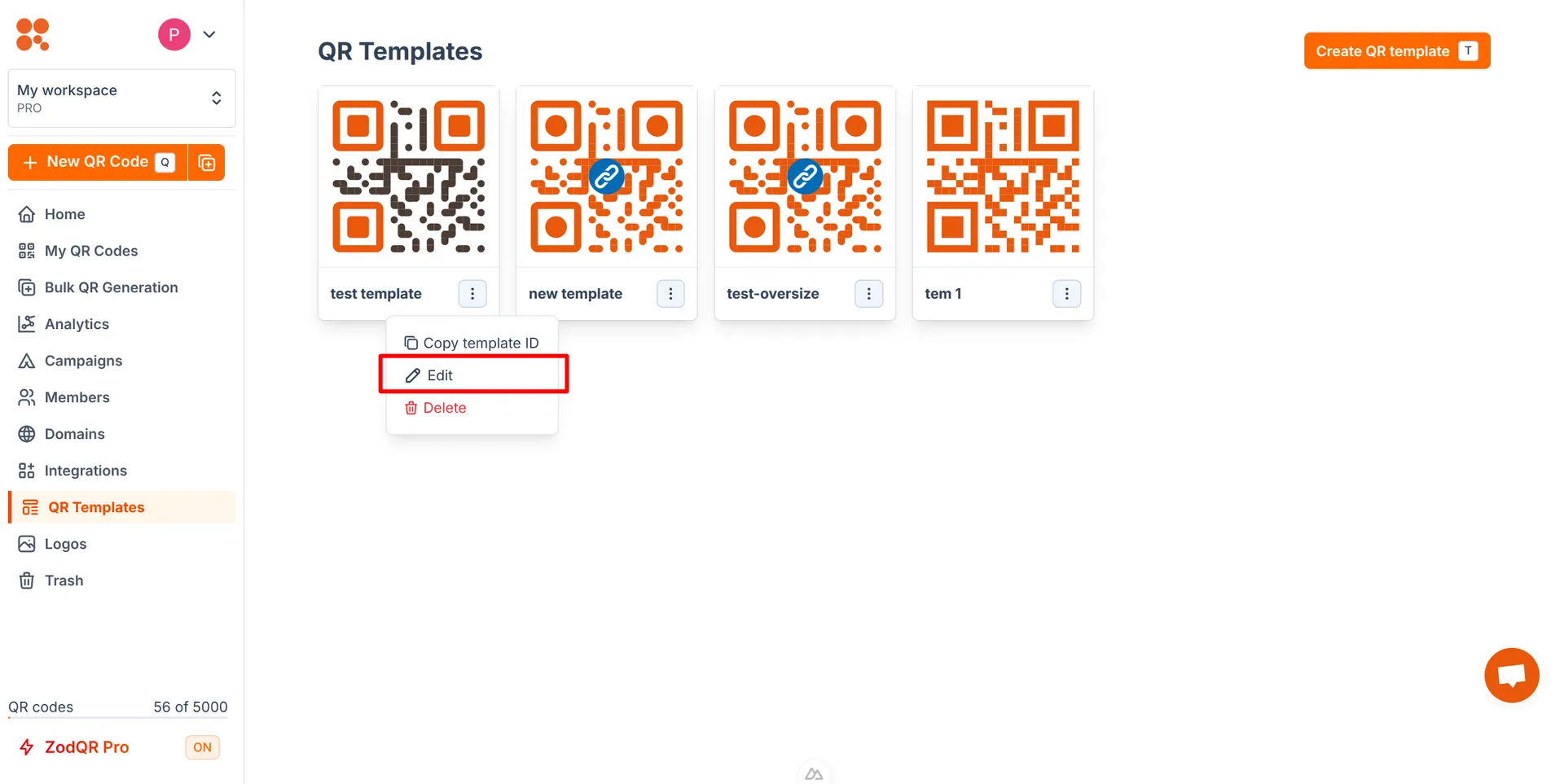
- Make the necessary changes to the template design or details.
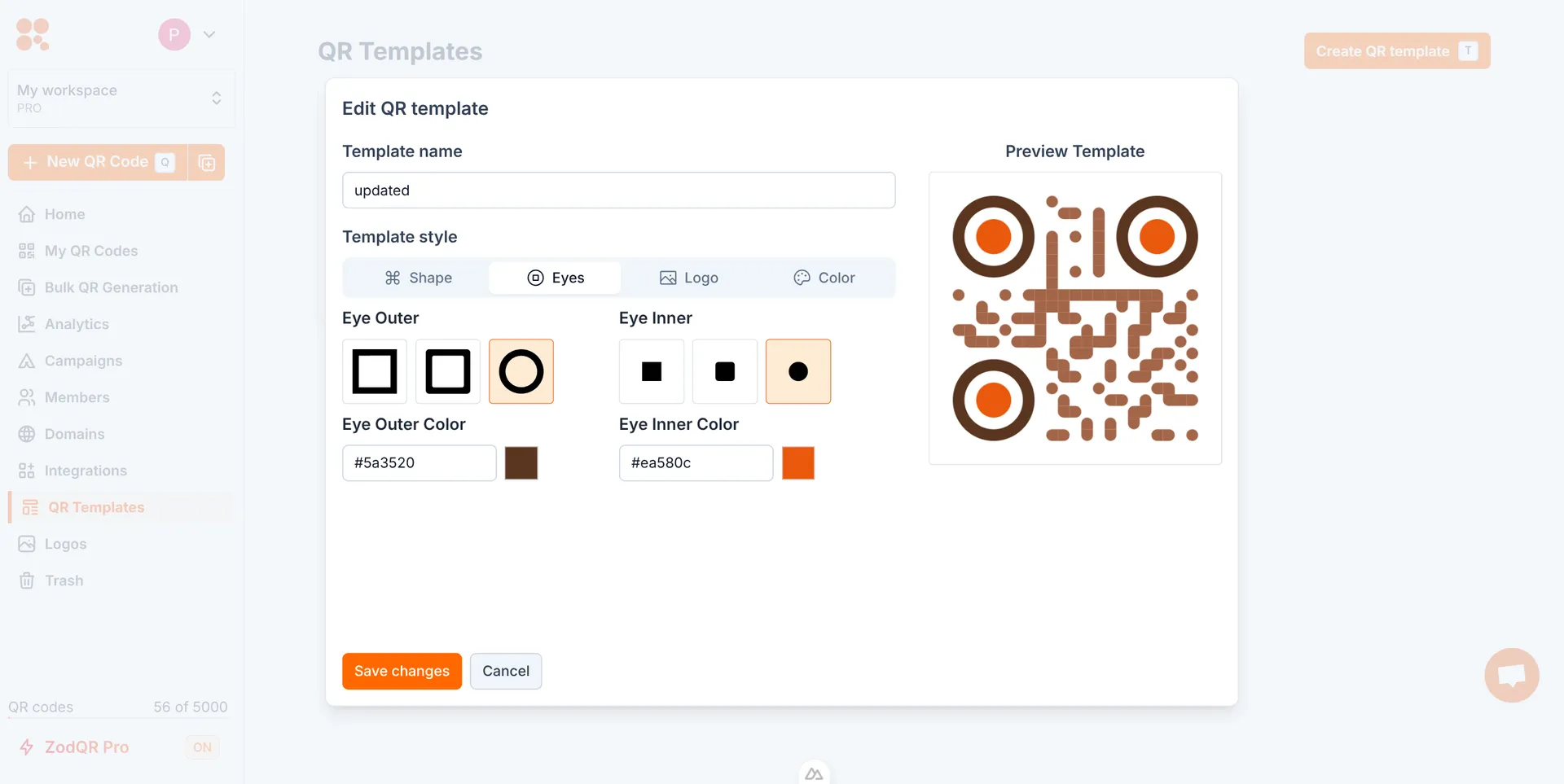
- Click Save changes to update the template.
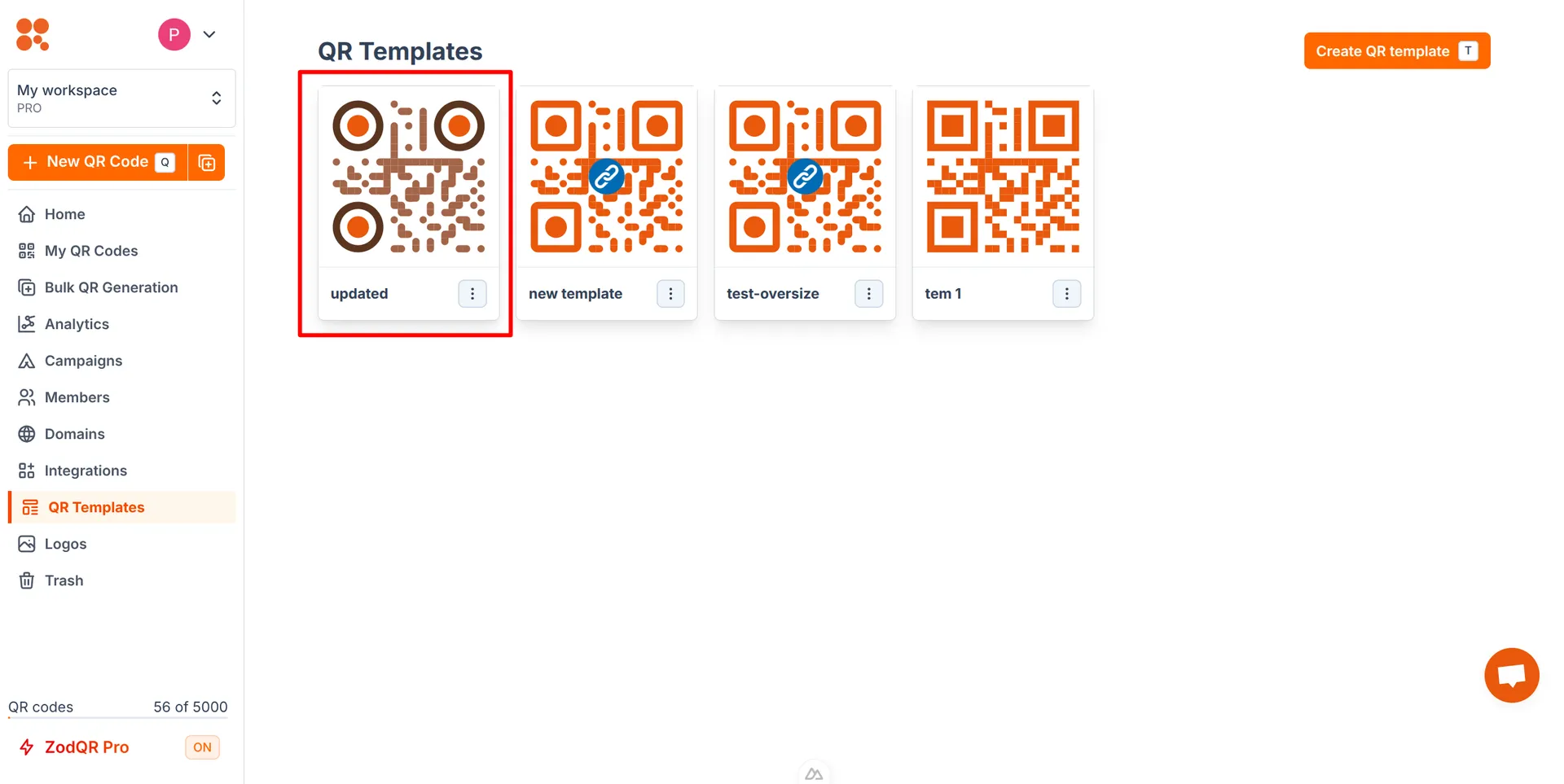
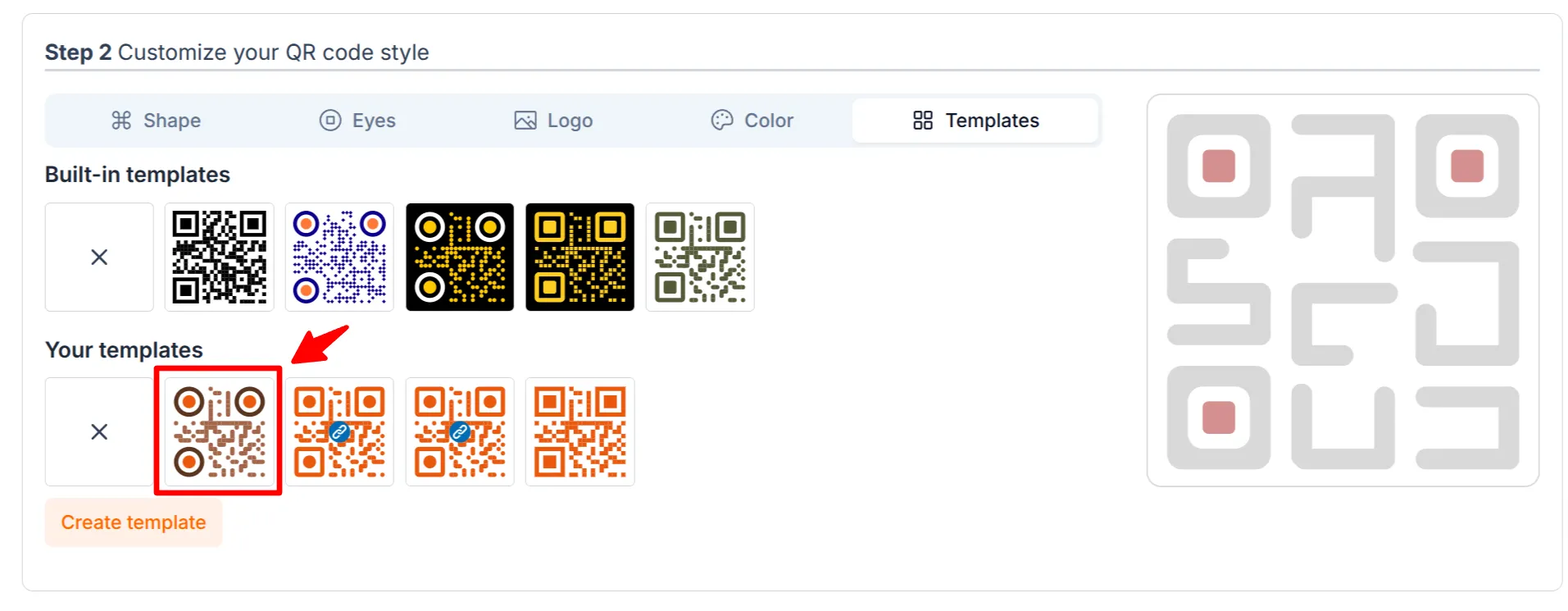
Your changes will not be reflected in any QR codes that use this template. You will need to update those QR codes individually to change the design.
Delete a QR Code Template
Warning: If you're using a template for any 3rd party integrations, such as Zapier, make sure to update those integrations to use a different template before deleting the template. Otherwise, those integrations may break when the template is deleted.
- From the
QR Templatespage, find the template you want to delete and click on Delete button.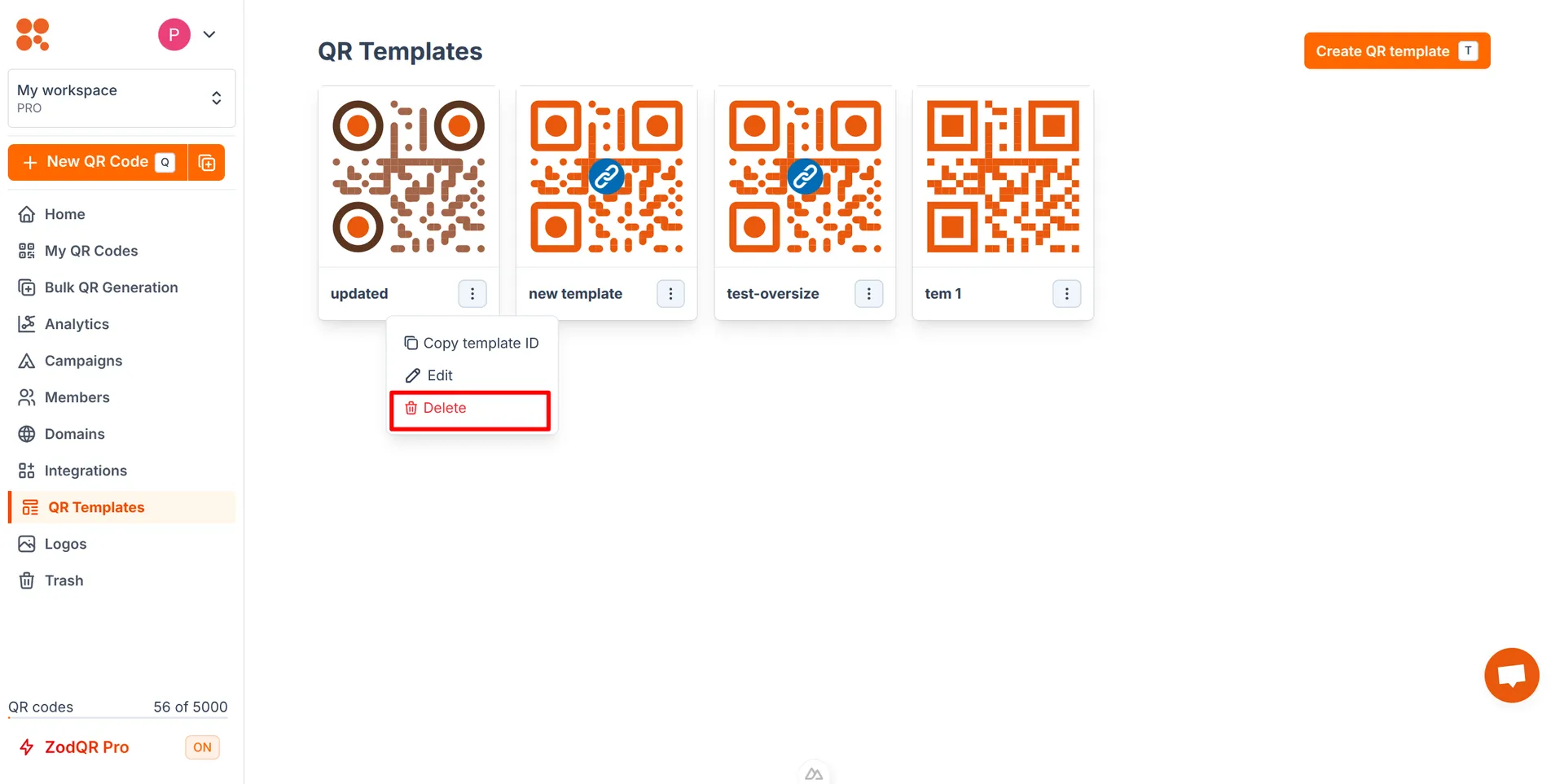
- Confirm the deletion when prompted.
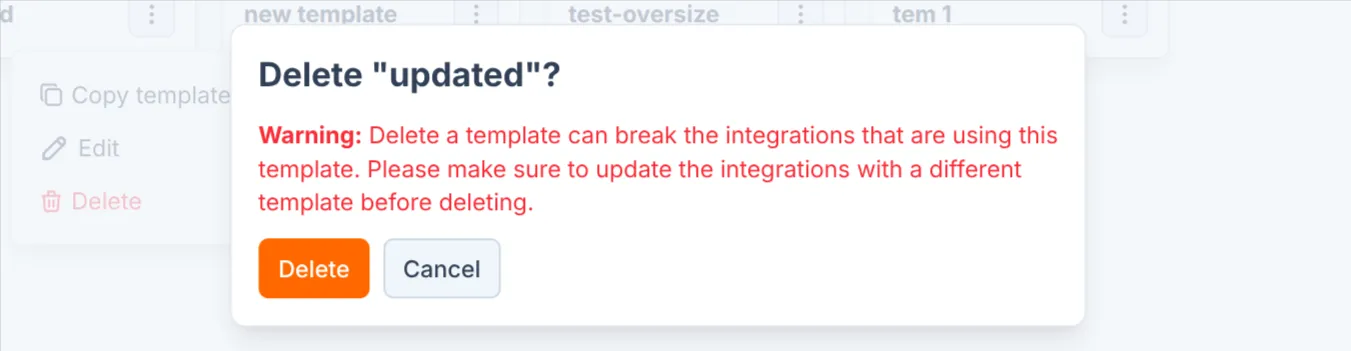
- The template will be removed from your account. Note that any QR codes that were using this template will not be affected, but you will no longer be able to use this template for new QR codes.