Setup custom domain (white-label)
Step by step guide to add custom domain to ZodQR for white-label QR codes
Custom domain QR codes is available for Pro and Business ZodQR users.
Requirement
- You have a domain and can add DNS records for it
- You need to have Pro or Business plan
- Pro users can add 1 domain
- Business users can add 5 domains
Config DNS record
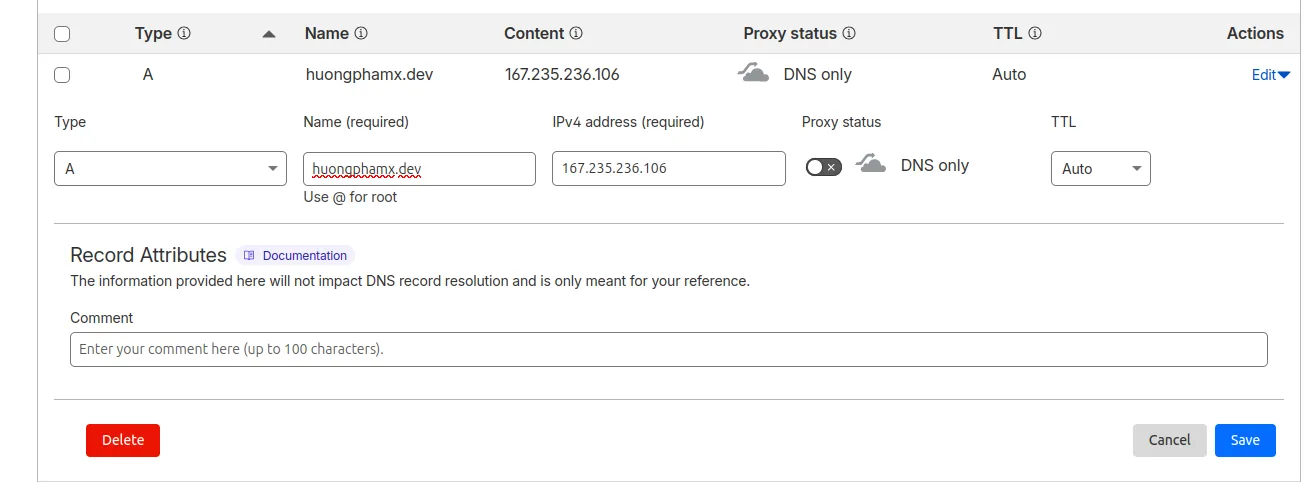
For apex domain
An apex domain (or root domain) is the main, registered top-level domain of a website, such as example.com, without any subdomains like www.
| Type | Name | Value | TTL |
|---|---|---|---|
| A | @ (or leave it blank) | 167.235.236.106 | 86400 |
| CNAME | www | cname.zodqr.com | 86400 |
Example adding DNS for apex domain in Cloudflare:
For subdomain
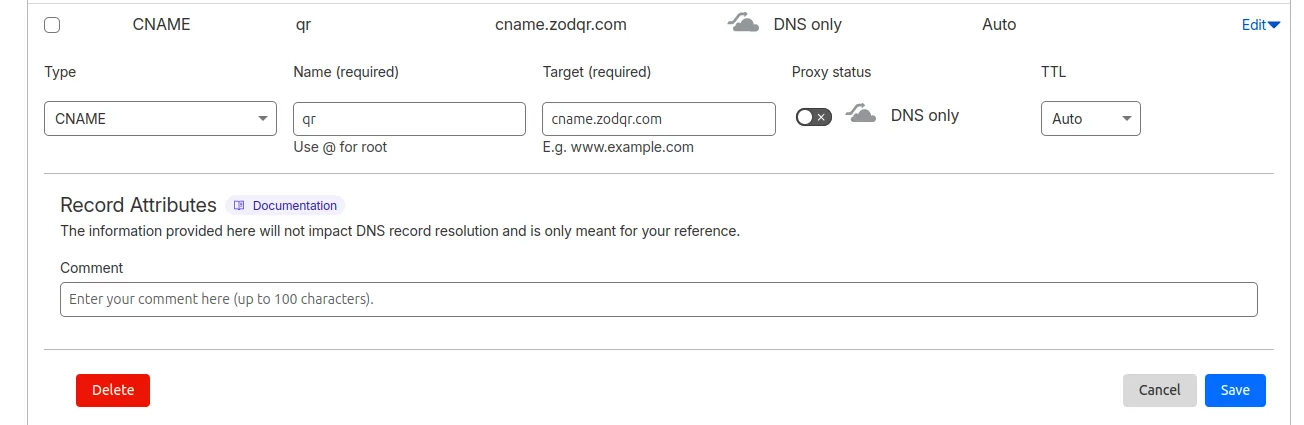
Say you want to use qr.example.com with ZodQR,
| Type | Name | Value | TTL |
|---|---|---|---|
| A | qr | 167.235.236.106 | 86400 |
| CNAME | qr | cname.zodqr.com | 86400 |
Example adding DNS for subdomain in Cloudflare:
Add domain to ZodQR
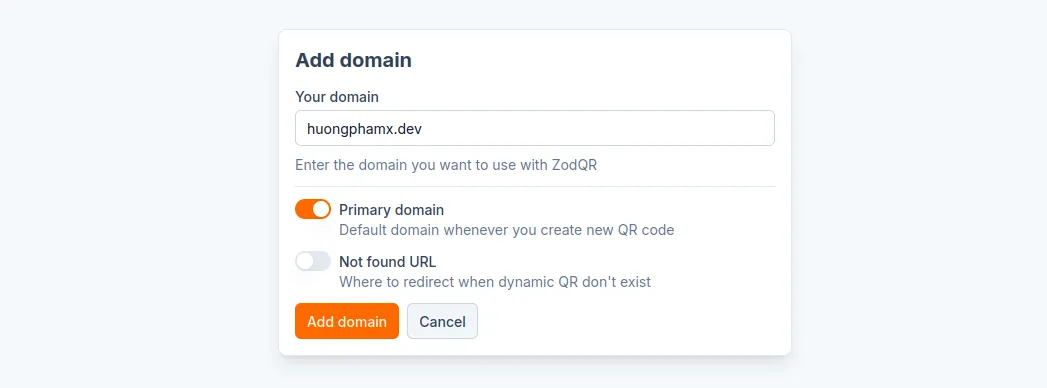
- From ZodQR dashboard, go to Domains page
- Click "Add domain" button
- Configure domain:
- Enter the domain you just configured in the DNS above.
- You can optionally set it as the primary domain, so that it will be used by default when you generate new dynamic QR codes.
- Set your custom 404 link, so that instead of showing ZodQR's default 404 page, it will redirect to your link.
- After finishing, click "Add domain".
- ZodQR will start validating your DNS. If your DNS is configured correctly, ZodQR will automatically create an SSL certificate for your domain.
Use custom domain when generating QR codes
- Generating dynamic QR code as normal
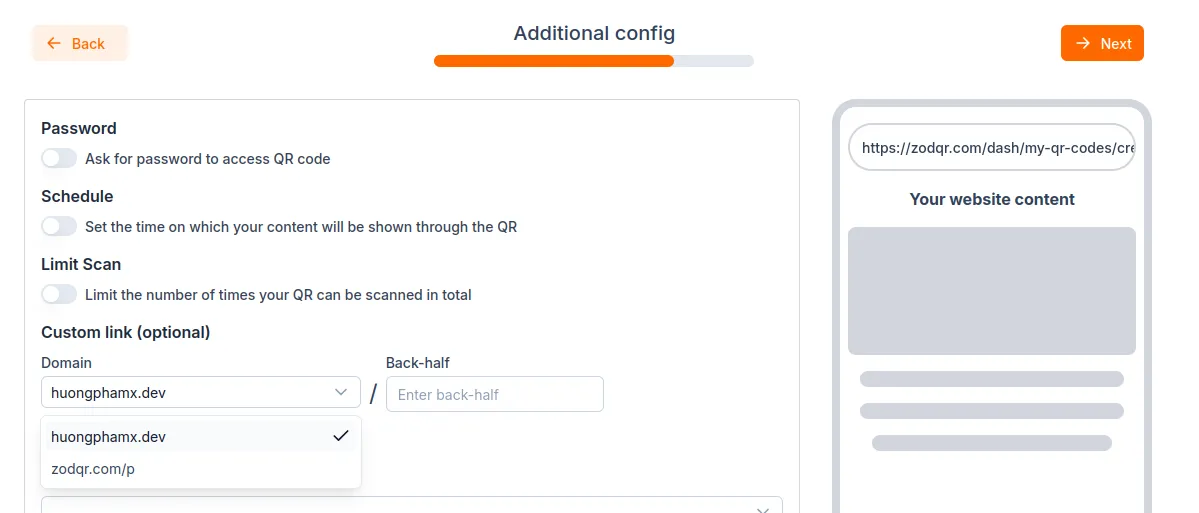
- At configuration step, look at the "Custom URL" section. Select your custom domain from dropdown list. You can also give it a custom backhalf for better readability - if leave blank, ZodQR will generate a random backhalf for you.
- Continue with styling your QR code
- Save your QR code