Add Password to QR Code
Password protection is available for all users, including free plan users.
Password-protected QR codes allow you to control who can access your content. Instead of sending everyone directly to a link or file, users must enter a password after scanning the QR code.
This is useful for private documents, internal resources, limited campaigns, or exclusive content.
In this guide, you’ll learn how to add password protection to a QR code, when to use it, and best practices using ZodQR.
Which type of QR code supports password protection?
Password protection is available for all dynamic QR code types of ZodQR, including:
- Link QR code
- vCard Plus QR code
- MP3 QR code
- PDF QR code
- PDF collection QR code
- List of links QR code
- Social media QR code
- Menu QR code
- App Stores QR code
- Smart URL QR code
- Landing page (HTML) QR code
Step-by-Step: How to Add Password Protection to a QR Code
Step 1: Create a Dynamic QR Code
Password protection requires a dynamic QR code. For detail guide how to create a dynamic QR code, please refer to our Link QR Code guide.
Step 2: Enable Password Protection
Once the QR code is created:
- From
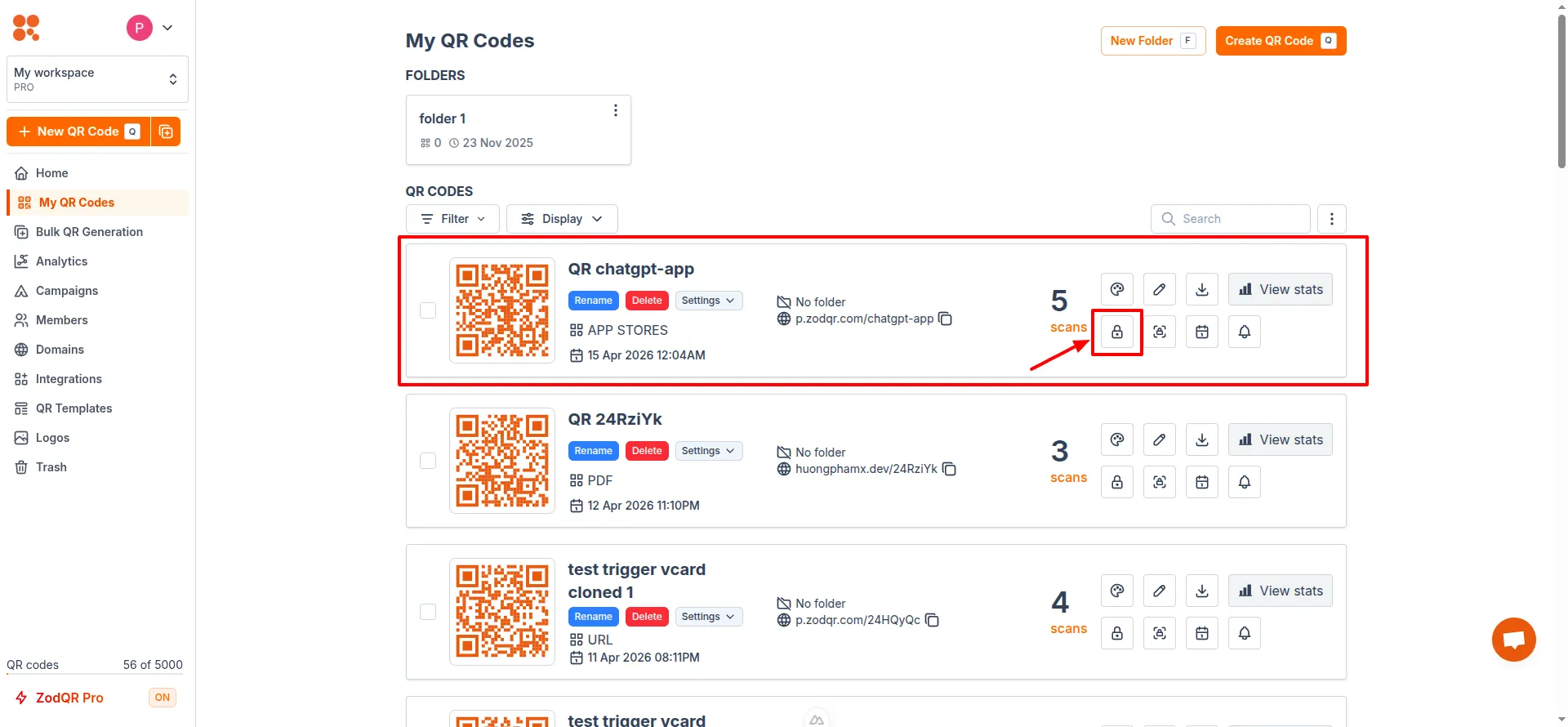
My QR codespage in your dashboard, click on the Lock icon of the QR code
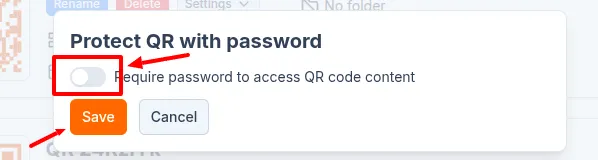
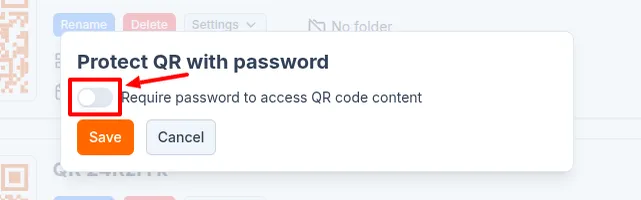
- Toggle the password protection option
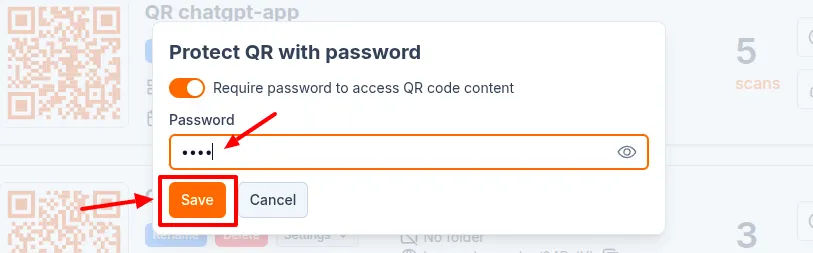
- Enter the desired password, then click Save
- After saving, the QR code that has password protection enabled will show a lock icon in your dashboard for easy identification.

Step 3: Scan and test QR code with password
Before sharing:
- Scan the QR code on multiple devices
- Confirm the password prompt appears
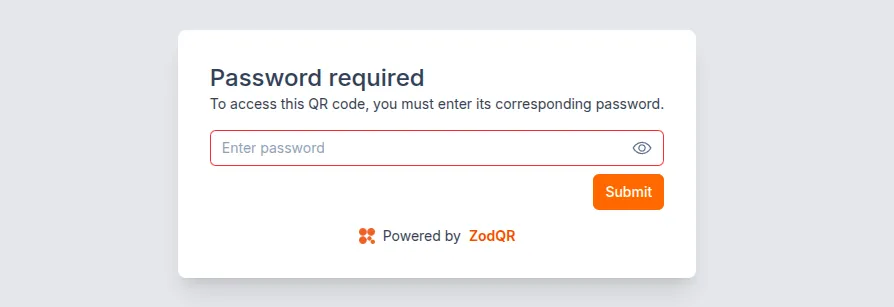
- Verify access is blocked without the correct password
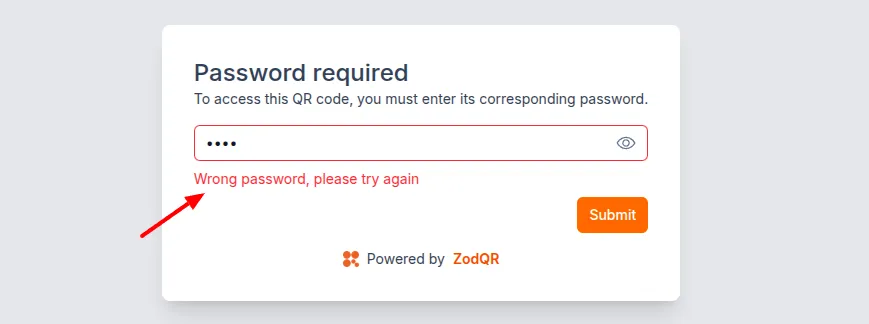
Testing avoids confusion for users later.
How to Change or Remove the Password
You can update the password anytime:
- From
My QR codespage in your dashboard, click on the Lock icon of the QR code you want to edit

- To edit password, simply enter a new password and click Save
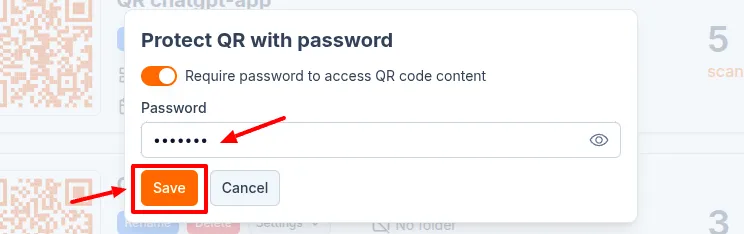
- To remove password protection, toggle off the password option and save. The QR code will no longer require a password to access the content.