Canva integration
The ZodQR Canva integration allows you to sync individual QR codes or all QR codes in a folder from ZodQR to Canva assets. Whenever your QR code's styling is updated, Canva assets will be updated accordingly.
Canva integration is available for paid users.
Connect a Canva account
- Ensure that you are logged in to your Canva account in the same browser as your ZodQR account
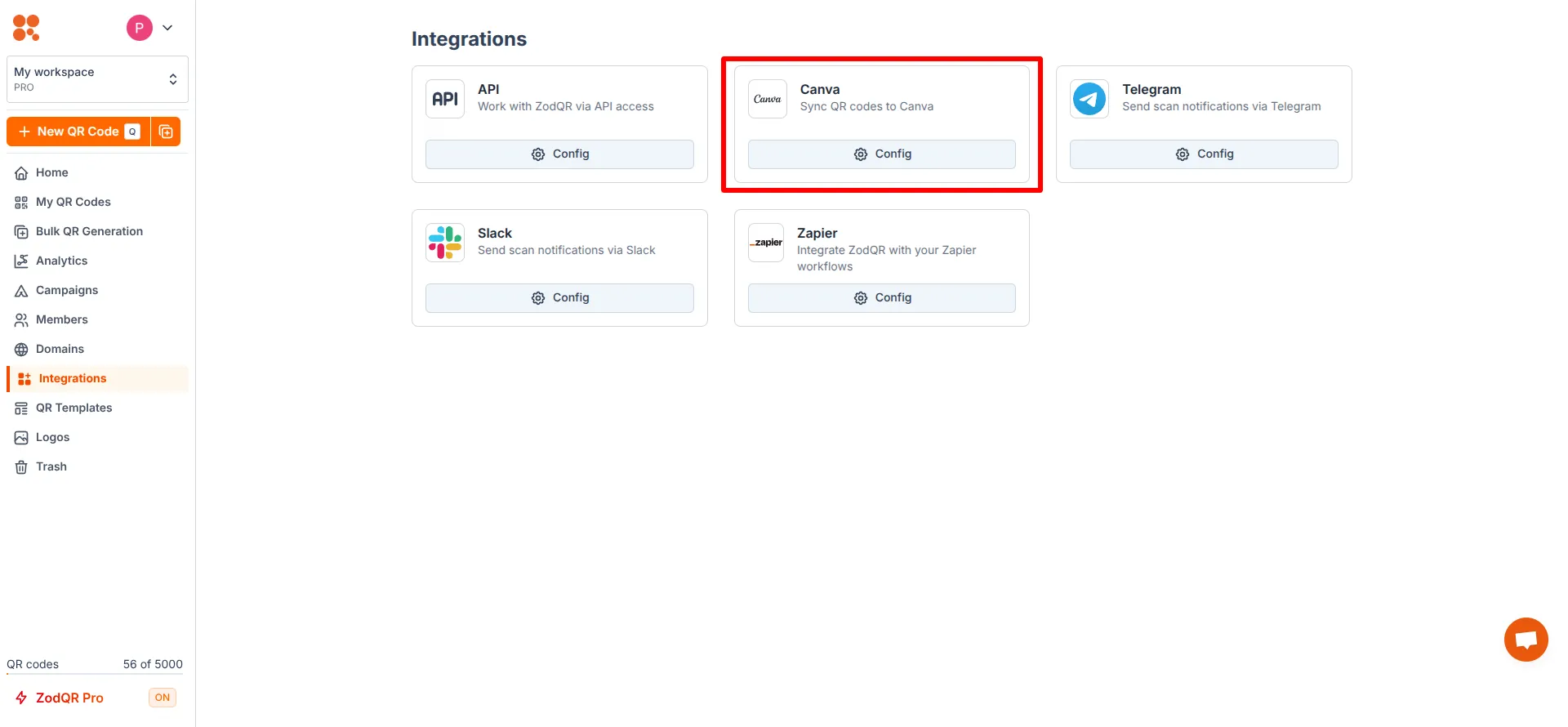
- From the ZodQR Dashboard, go to the "Integrations" page and click "Config" button in the Canva integration card
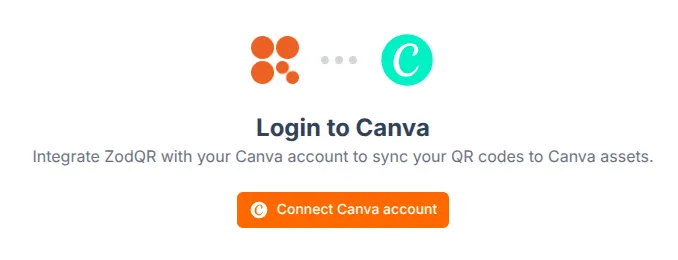
 Then click the "Connect Canva account" button
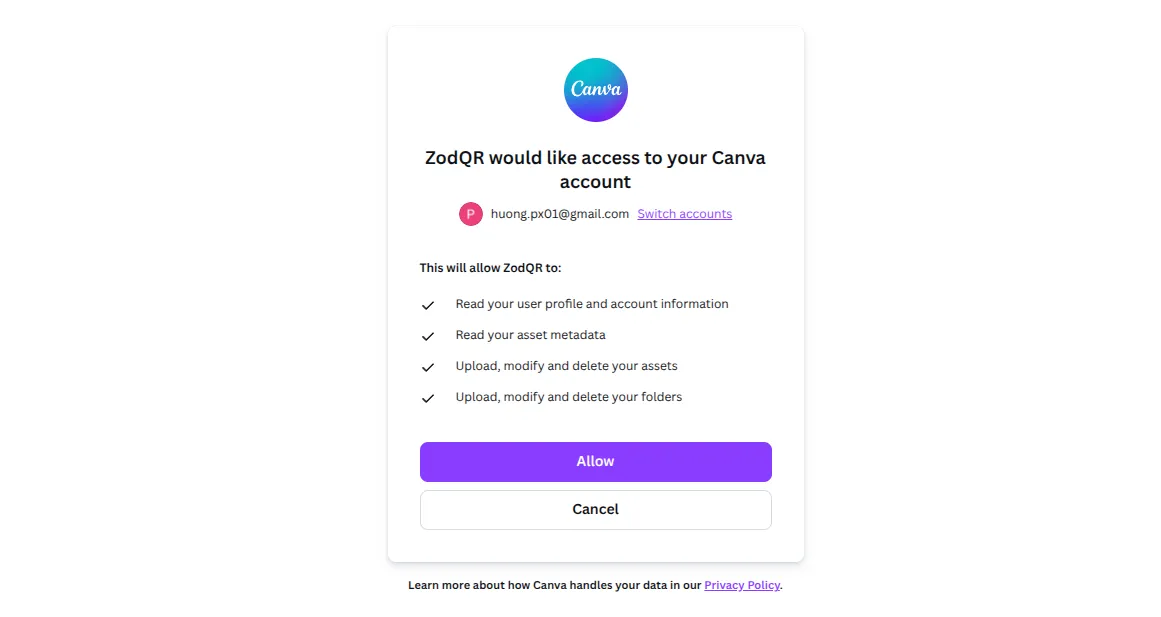
- Allow ZodQR to connect to Canva
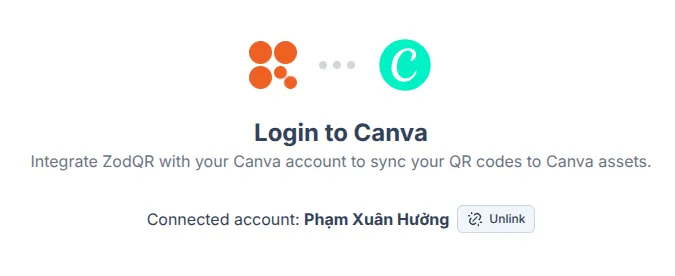
- After a successful connection, you will be redirected back to the integration page, with your Canva account name displayed
Sync QR codes from ZodQR to Canva
- Go to
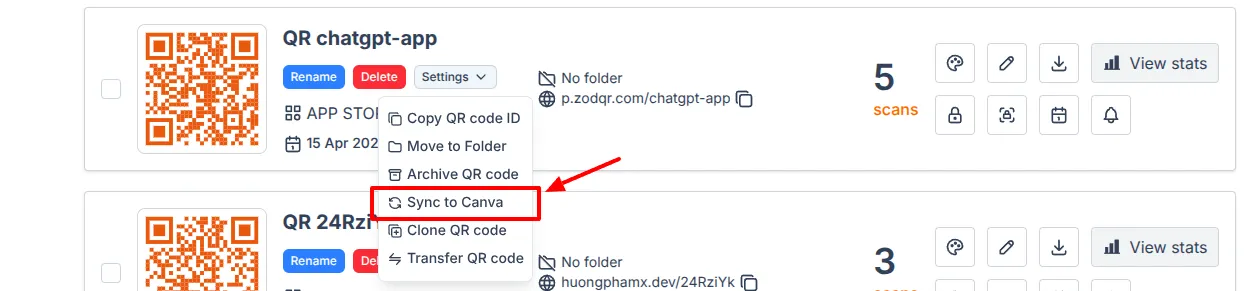
Dashboard/QR codes list - On the card for the QR code you want to sync to Canva, click the "Settings" button, and select "Sync to Canva"
 Then click "Sync" button:
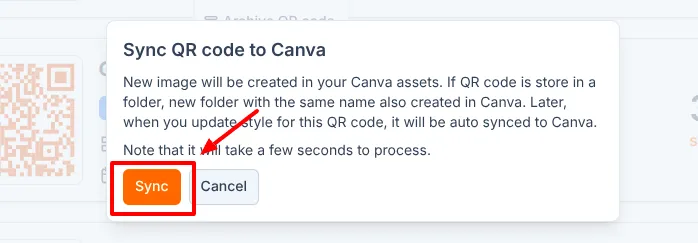
- Wait a few seconds, ZodQR will upload an image of your QR code to your Canva assets
- Once the upload is complete, you can find your QR code in your Canva
Uploads>Folders>ZodQR's QR codesand use it in your designs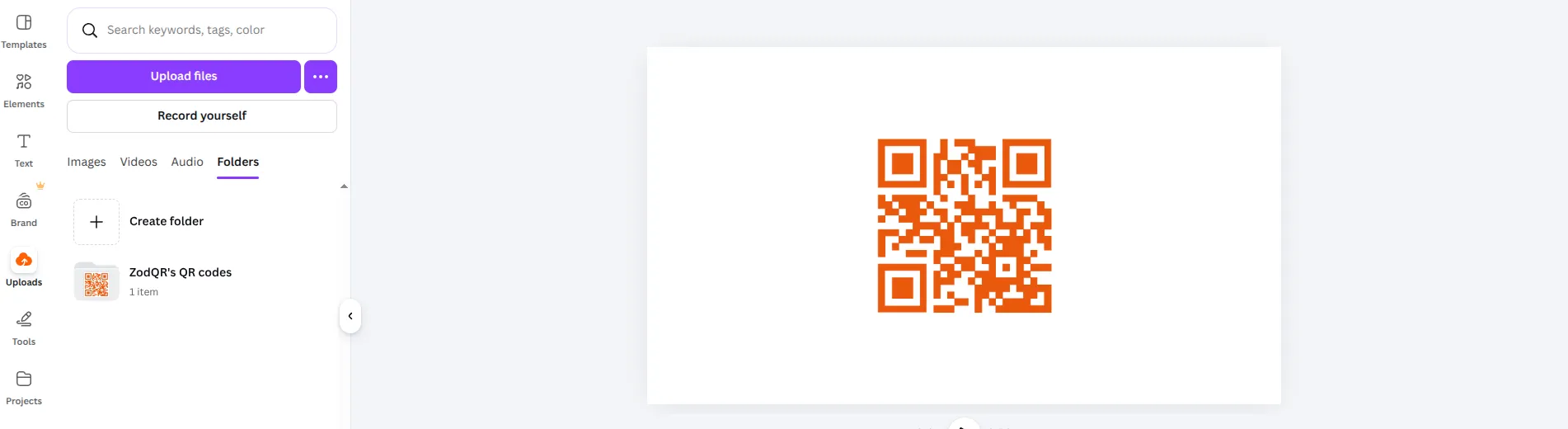
- Whenever your QR code styling is updated in ZodQR, the corresponding Canva asset will be updated automatically
Sync all QR codes in ZodQR folder to Canva
- Go to
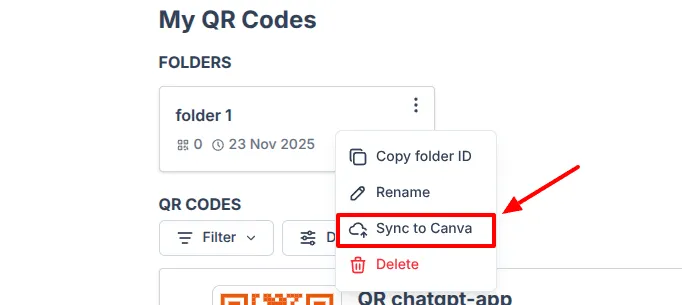
Dashboard/QR codes list - On the card for the folder you want to sync to Canva, click the "More actions" button, and select "Sync to Canva"
 Then click "Sync" button:
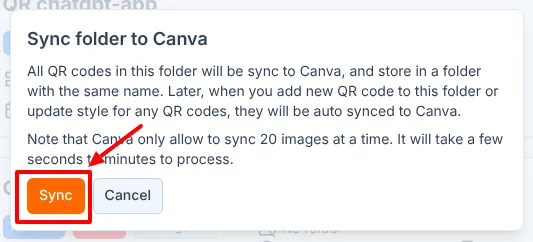
- Wait a few seconds, ZodQR will upload images of all QR codes in the folder to your Canva assets
- Once the sync is complete, you can find your QR code in your Canva
Uploads>Folders>ZodQR's QR codesand use it in your designs - Whenever any QR code styling is updated in ZodQR, the corresponding Canva assets will be updated automatically